Stop Writing VBA From Scratch! Use THIS Instead!

Stop Writing VBA From Scratch! Use THIS Instead!

Machine-readable: Markdown · JSON API · Site index
Поделиться Telegram VK Бот
Транскрипт Скачать .md
Анализ с AI

Оглавление (2 сегментов)

Segment 1 (00:00 - 05:00)

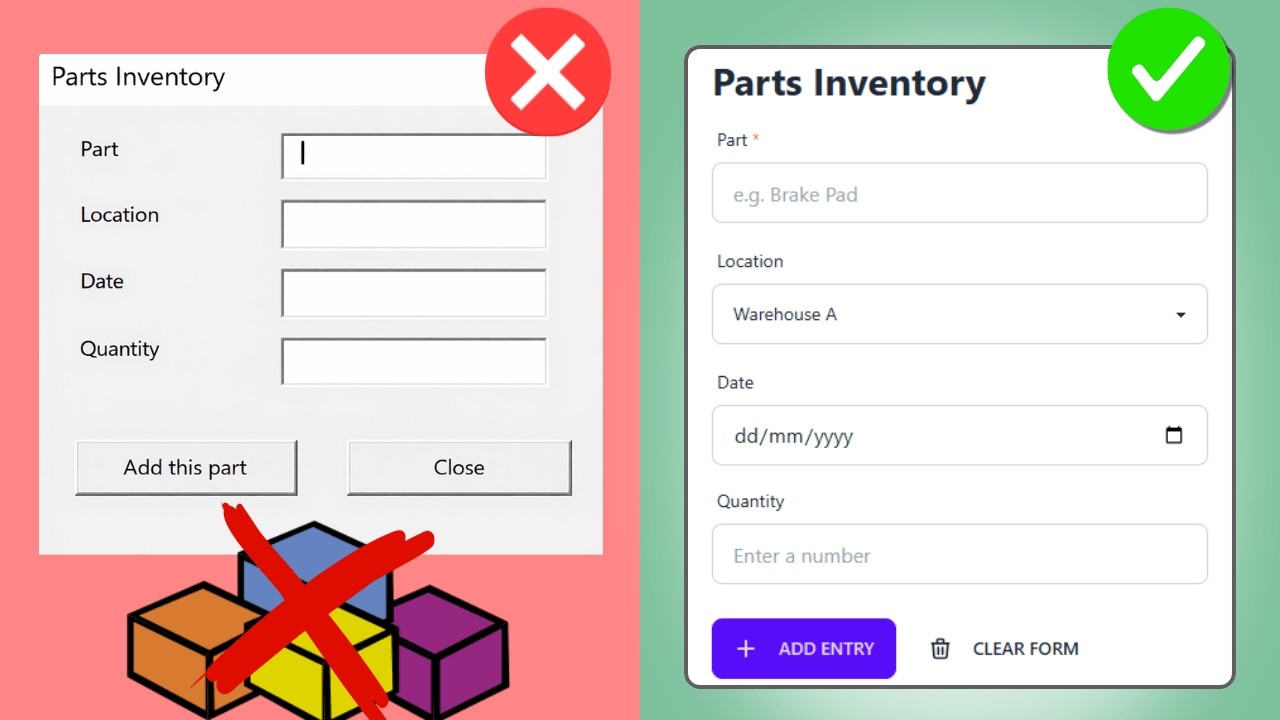
When it comes to automating Excel I typically use VBA or Python. Now, if you know Python you know there are already many packages available which makes your coding life a lot easier. For example, if you want to do some data analysis you might want to use NumPy or Pandas. Or when it comes to Excel automation you might use OpenPyXL or xlwings However, when I start a VBA project typically I start from scratch. Now, this is per se not a bad thing because you don't rely on any third-party packages. So I've seen already VBA codes that has been written a long time ago, like 10 or 15 years ago but the code still works fine without any adjustments. However, did you know there are actually a couple of community packages which you can use for free in your VBA project. And most of those packages are listed here in this GitHub repository which is called Awesome VBA and I couldn't agree more with the name. For example, if you're a little bit tired of the old school looking user form you might want to check out this section here. So here you will find a list of modules all about user forms. For example, if you want to give it a bit more of a modern touch you could use the material UI package, or maybe also check out the modern UI components. Now personally, I'm actually fine with the old school looking user forms but when it comes to file handling I typically use the JSON package which you can find here. And I have it already open in this tab here. Now with VBA JSON it makes it super easy if you want to pass any response. So typically, if you're making, for example, an HTTP request or getting some data from an API most of the time that data that is returned is in JSON format. And with this package it is so much easier to deal with the JSON data. So here you can see some examples on how to use it. And if you also want to use it in your project you can just download the JSON converter module. So here you can just download this module to your computer and then import that module into your project. Now VBA JSON is already super handy but there's actually another package that I use almost all the time when I need to do some web requests and that is VBA Web. Now the big benefit for me is that this package is also platform compatible. That means you can run it on Windows and also on macOS without changing your code. So all the things that need to be changed for the web request will be already handled by VBA Web. Also, you will get support for authentication. And also the VBA JSON module which I just showed you, is also already included in this package here. Additionally, it makes it also much easier to working with cookies, headers, and so on and so forth. Now if you want I can also make a dedicated tutorial on how it works, but basically just have a look at the GitHub repository here. Here you will find also the examples on how to use the package. And if you want to use it they even have an installer. So you just download the installer file follow the instructions there and then the installer will copy all the modules which are necessary into your project. And with that, let me also show you another package that I almost use all the time in my project. And this is the VBA FileTools. Now when you import this module you will get a bunch of useful functions which makes it much easier to work with the file system. So for example, here you get a new function which is called copy file, copy folder, create a folder, get files, get folder, and so on and so forth. And again here, most of those functions are also compatible with macOS. Now let me actually give you a practical example on how to use it. So all you really got to do is to go into the source folder in here and here you will find the lib file to its module. So just open it here and then click on the download button. After that it's done I will navigate to my download folder. And sometimes Microsoft blocks files downloaded from the internet. So before opening it or importing it into your project just give it a right click and then go to properties. Here in the security section you might see an unblock option. So if it's there make sure to tick it and then hit apply and then okay. And if you don't see the unblock option that just means the file is already unblocked and you can use it right away. All right. With that in place let me open a new VBA project. And here in the new project I will just right click in here and select import file. Then I can navigate to my downloads folder and select the file we just downloaded. So the lib files to it. All right. And with that, I now have a new module. So the lib file tools and now I have access to all those functions here. So to show you how that works let me just insert a new module. So in here, let me just paste an example to create a folder on my desktop. So first I'm getting the desktop path and then I'm building the path to my desktop folder. And here I'm now using the new function creating a folder using the path I just created. So when I run this code you will see a new folder has been created now on my desktop. So of course, this is just a really simple example, but definitely have a look at lib file tools. Now, when you go back to Awesome VBA you will also find a section for development tools. So here I can also give you one recommendation, which is MZTools. So it's in plugin for the Visual Basic Editor. As you know, the Visual Basic Editor is a little bit outdated and it's lacking a lot of features, which for example

Segment 2 (05:00 - 07:00)

modern IDEs like VS Code, for example, have. Now this add-in is of course not a full replacement for Visual Studio Code but it will give you really cool features. However, I should also mention that MZTools it's not free. So you actually need to buy it but it's a one-time purchase. So you buy it once and you can use it forever. Also just to be clear here I'm not sponsored by MZTools. I'm just using this tool for years now and I'm super happy that I bought it. So if you want to see all the features just go to their website and then go on the feature section and then just have a look yourself which features are included into this add-in. But just to show you a couple of my favorite ones let me go back to Excel. And here, let me actually remove the indentation. Because once you have it installed you will see it here on your menu. And here you will see all the features and utilities it has to offer. So for example, if I go to other utilities, I could, for example, indent the lines. Now another feature I'm using all the time is to add line numbers to my VBA project. Now this actually might surprise you, but yes you can use line numbers in VBA. So to show you how it works let me give you an example. So here on this line here I'm now raising an error. So I have to find my error handler here. And when it hits my error handler I will just get an error message. So let me show you what I mean. So when I run the subroutine I will get my message box here with the error number and my error text. Now, so far, so good. And in this project it's actually super easy to spot where the error is. But if I have a larger code base and ought to distribute in this VBA project, for example, to my colleagues or even customers, then I actually want to know at which line the error occurred. And this you can do with line numbers. So to add line numbers I can just go back here to my other utilities. And here you will find the point at line numbers. And now you can see it added all the line numbers. Now at the first glance it looks a little bit messy. But this is only when I'm shipping my solution. So for example, for development I'm not using line numbers. But once I ship it I'm just using mztools to add line numbers to all my VBA code in my entire project. And now here's where the magic happens. So if I run this code now again you will see I also get my error message. But this time, it also includes the line number. So we've got our error code, the error message. But this time, it also includes a line number because I have included it also here in my error handler. So I think this feature alone will save you a ton of time when it comes to debugging. Now, I didn't want to make this video about error handling but I just wanted to show you which tools I'm using and also which tools you also might want to consider in your daily work. So with that said, definitely check out Awesome VBA. And I will, of course, also include the link in the description box below. All right. And with that, thanks for watching. And I will see you in the next video. Cheers.

Другие видео автора — Coding Is Fun

Ctrl+V

Экстракт Знаний в Telegram

Экстракты и дистилляты из лучших YouTube-каналов — сразу после публикации.

Подписаться

Дайджест Экстрактов

Лучшие методички за неделю — каждый понедельник