Convert GPS Coordinates to Addresses in Excel | Reverse Geocoding Template

Convert GPS Coordinates to Addresses in Excel | Reverse Geocoding Template

Machine-readable: Markdown · JSON API · Site index
Поделиться Telegram VK Бот
Транскрипт Скачать .md
Анализ с AI

Оглавление (1 сегментов)

Segment 1 (00:00 - 02:00)

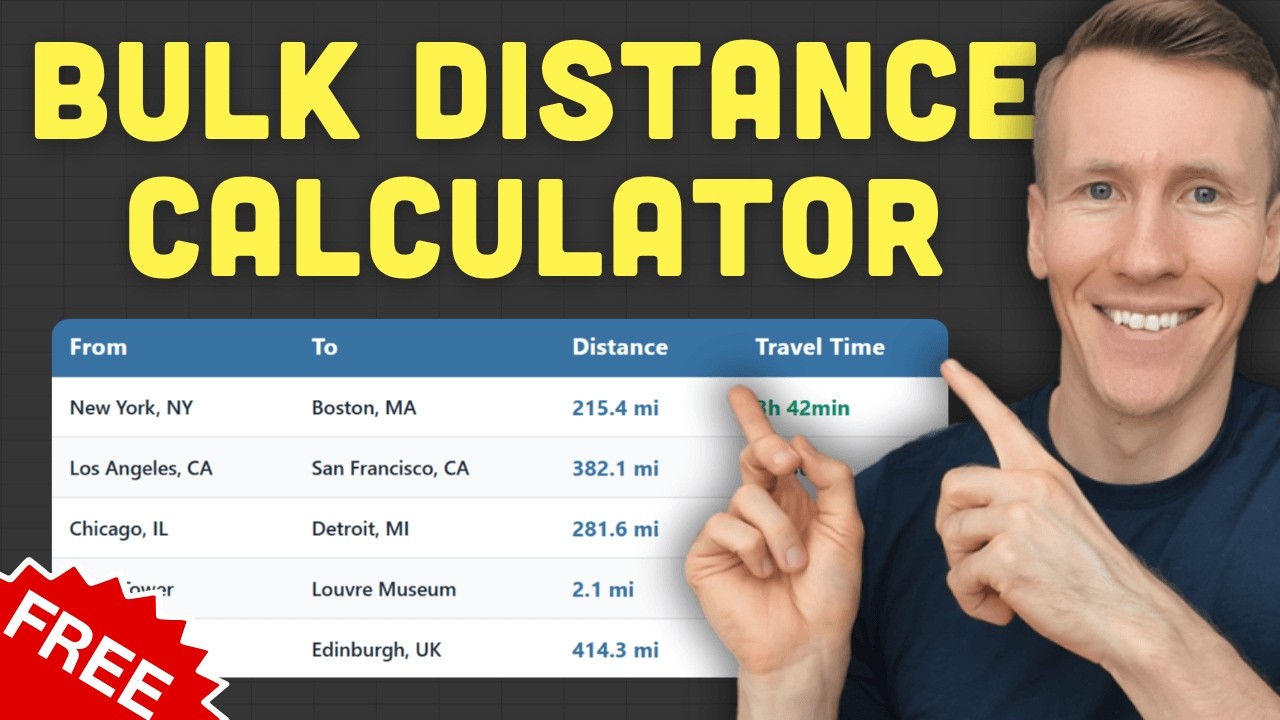
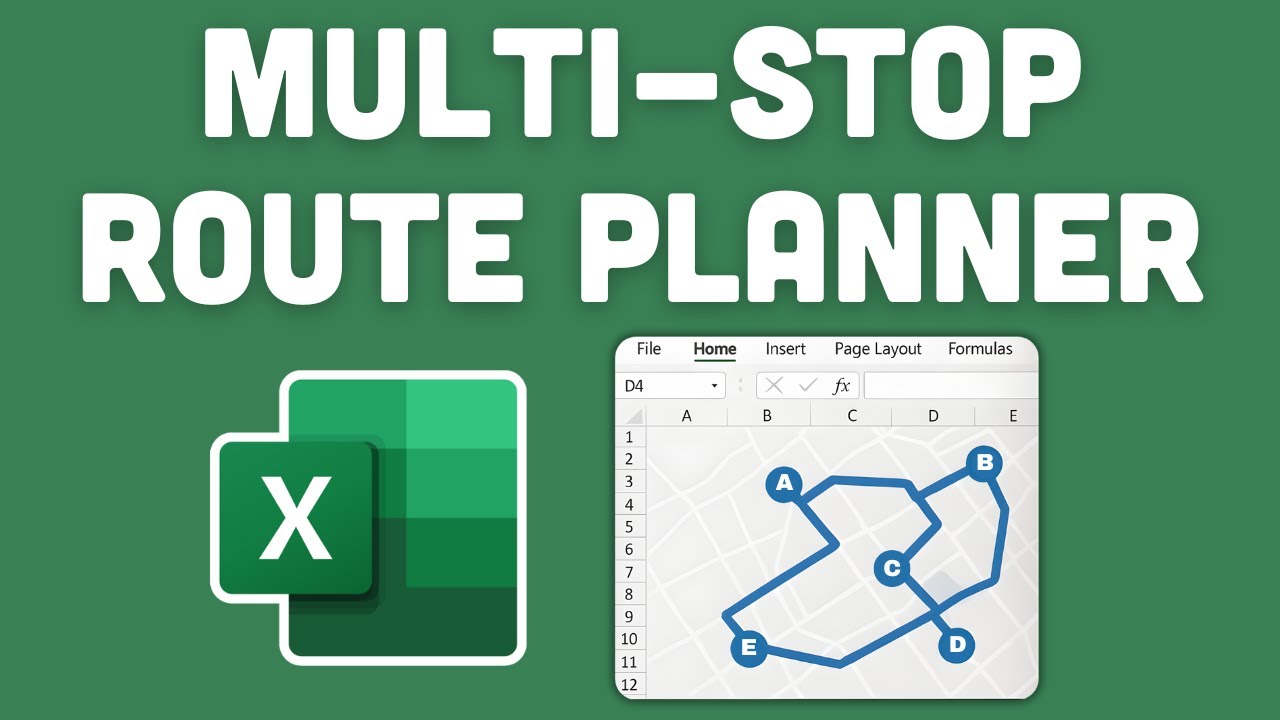
In this video, I will show you how to convert GPS coordinates to addresses using Microsoft Excel. For that, I've created the following template. All you got to do is to paste your coordinates into the input column and press this button here. The tool will then go through each row and return the full address. It also gives you the different address parts like the street name, the city name, the state or province, the postal code and the country. Now this tool also works the other way around meaning if you already have an address you can paste it into the input column as well and you will get back the latitude and longitude. Now as you can see the input format for the geocoordinates should be the latitude and longitude separated by a comma. But if your coordinates are stored in a table or a list with two separate columns that is also not a problem. So here as you can see I've stored my coordinates in this table and I'm also using different formats like using decimal degrees or the DMS or DDM format. Now to bring those into the address formatter template you can use the combine coordinates function that comes built into the template. This formula expects now two cells as the input, first the latitude and then the longitude. And since this is an Excel formula I can also reference a cell value from a different workbook. Now in my case I also want to drag the formula down so I'm going to change the absolute cell reference to a relative one by removing the dollar signs. Once I press enter my input column fills out automatically and all the coordinates get converted into the required input format. And again, once that is done I just need to press this button here to get the addresses. Now to get the addresses the tool uses Google Maps under the hood so you will get the most accurate results. For this to work you will need a Google Maps API key. Setting it up is free and only takes a couple of minutes. With that key, Google gives you 10,000 address lookups per month completely for free. And if you go over that limit they will charge you $5 for every additional 1,000 lookups. Now in the Excel template itself is a one-time purchase so you buy it once and you can use it forever. No subscription needed. Once you buy it you will also get a welcome email that includes a link to the getting started video. In that short video I will show you step by step how to set everything up. Now the template itself works on Windows and macOS but you do need the desktop version of Excel because it uses VBA macros under the hood. Alright, so to download this tool, just check the first link in the description. And if you've got any questions just let me know in the comments below. Also, if you need a template to calculate distances between two locations or to find the best route between many locations, then check out these videos here. And as always, thanks for watching and I will see you in the next video.

Другие видео автора — Coding Is Fun

Ctrl+V

Экстракт Знаний в Telegram

Экстракты и дистилляты из лучших YouTube-каналов — сразу после публикации.

Подписаться

Дайджест Экстрактов

Лучшие методички за неделю — каждый понедельник