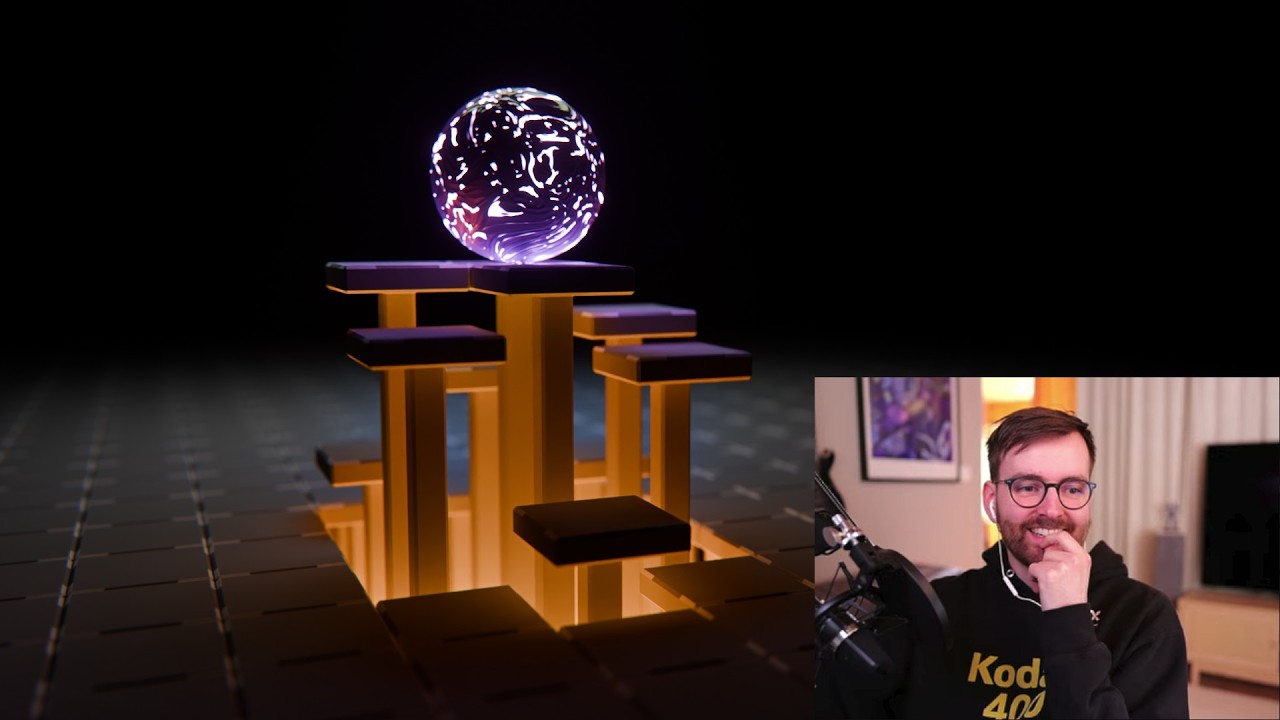
Hello! Today I'm testing out a new format on my channel: A MEGA TUTORIAL 📖🧠 It covers absolutely every single step from start to finish! We will animate a fish in Blender - no matter how long it takes. This means that this video is my most in-depth youtube tutorial yet, where we will be animating a fish (as seen in my previous video https://youtu.be/7TZaAAifdy0)
Project file here (free): https://www.patreon.com/posts/151715503/
This tutorial is very beginner friendly, because I try to make no assumptions about your previous knowledge, and I try my absolute best to explain every single step, and why we are doing what we are doing. This means that this video shows the entire process completely raw and unedited. It includes all my mistakes and every reasoning I make during the process, and I hope it's valuable for you!
I am testing out this longer format, so if you think this 'mega tutorial' concept is an interesting format, please let me know if there's any topic or technique you would like to see me go in-depth with like this! Thanks for watching!
00:00:00 What we'll be creating
00:01:19 Finding a fish model
00:16:10 Curve path setup
00:38:15 Animation part 1
01:05:06 Model optimizaitons
01:22:35 Animation part 2
01:43:09 Shape keys
02:02:13 Texturing & lighting
02:34:17 Camera movement
02:58:15 Motion blur R&D
03:21:19 Final result
Оглавление (11 сегментов)
What we'll be creating
Hello. Welcome to my first mega tutorial. This is not a regular tutorial. It's a mega tutorial. I'm going to just explain every single thing in this video. And I don't care how long it will be. I want to just document the entire process. I promise you that I will do no assumptions that you already know how to render out the scene or oh, that add-on is something I definitely need to have. So I want to show you how do you make an animation in Blender from start to finish with all the little buttons and tweaks and everything that requires. So what I want to do today is that I want to make a fish animation that is similar to what I did in my previous tutorial. So if I go here and you can see on my uh fish animation tutorial that I made u I posted it yesterday. I don't know when this video will be posted. I make this fish animations which I've been completely obsessed by recently. If I'm being completely honest, this animation of this fish is actually possible to do in 10 minutes. But we're not going to do 10 minutes today because I'm going to make this very beginner friendly and explain every single step. So today we are just starting out with a factory reset blend file. So I'm going to go file defaults load factory settings. So my Blender installation right now is exactly as raw as you get the first time you download Blender to any computer. So this is the
Finding a fish model
default Blender experience. Now we have a factory reset Blender. And now we're going to do some changes to our Blend file just because there are some things I think are smart to do when we are making uh the project that we're making today. So first of all, I want to go to edit preferences. Oh, it opens up there. And you can probably tell that the text on my screen is quite small right now. And I want to increase this. So I'm going to go to interface up here. And then you can take this resolution scale and you can increase it. So if you click and drag, you can see we now have a larger scale resolution. So I like to set this to 1. 4. That just feels really crisp. And I don't know why this feel crisp, but my computer monitor is 1440p. And I see the number one and four. I don't know. Could that be like why it looks so crisp? I don't know. It might actually even be crisper in 1. 5, but I've getting I've gotten used to 1. 4 by now. So, that's what I like to do. And then we can go down to the um get extensions here. We don't need to extend. install an extension yet, but I want to just click allow online access just so Blender has access to the internet. And this is a much easier way to install extensions which are basically free add-ons that are um green lit basically to work with Blender. So these have been screened by Blender experts that are really like looking at the code, looking at the purpose of the add-on, looking at the is it intrusive, is it whatever. And it's actually a pretty cool process where they take care of the users basically. So the Blender extension platform is amazing. If you want to learn more about Blender extensions, you can go to the extensions. blender. org and here you can yeah you can upload your own extension and you can see like what are the most popular ones, what have the most ratings, what do people say about this. So this amazing community of Blender extensions and then um yeah add-ons is basically the same as extensions but uh I think we're in kind of like a transition phase right now where Blender is trying to decide should it be called add-ons or extensions. So if this is confusing, I understand. Okay. And then we want to go down to system. And uh since my computer has a dedicated GPU, it's an Nvidia GPU. You can see we have the cycles render devices, which is basically what type of um software is paired with your hardware basically. So here you have CUDA which is the Nvidia um GPU acceleration technology and then you have optics which is a newer GPU acceleration software from uh Nvidia. So if you have an Nvidia GPU and it's an old one you have to use CUDA but it's a newer one you can use optics and then if you have uh what is this? Yeah, this is AMD. If you have an AMD GPU you can use HIP and if you have an Intel GPU you can use one API. So yeah, I'm going to use optics because I have an Nvidia RTX 4090 which is a very powerful GPU with a lot of VRAM. So my viewport is going to look very smooth and also YouTube compression makes the noise um go away a little bit. So if you think that my viewport looks better than yours, it is most likely because we're more used to seeing compression artifacts and we kind of accept that in a different way. But if we have but if we're looking at it in your own screen, then it might look a little bit more noisy. So, don't be discouraged if you see that my viewport looks smoother or better because most likely when you render it out as animation, it will be identical and it will look really good. I think you can do it. Yeah. So, okay. And then you have the display graphics. The back end is currently set to OpenGL. If you want to, you can set it to Vulcan. I think I actually want to do that because I feel like it's newer and maybe more stable. Yeah. And then if you want to, you have the file paths if you have a different place to store your fonts. And then you also have asset libraries if you want to use that. We won't be using that today. And there was one more thing I want to just uh one setting I want to do. Where is that interface uh system? Yeah, here in the system, if you scroll down to memory and limits, you have the undo steps. And if you want to, you can increase this. So for example 64 which if you have a lot of RAM it's so nice to just have more undo steps because very often if you have made a mistake and you're just pressing Ctrl Z control Z it is so incredibly frustrating when the control Z just stops and you can't do it anymore and you know that I could have just changed this setting and I would have been good. Yeah. And then also in the video sequencer, I don't think we'll be using this today, but um if you we might actually end up using it. Yeah. So if you have a lot of RAM, I think I have 64 GB of DDR4 RAM. So if you have a lot of RAM, you can increase this. So you can for example type multiply 8 for example and now it's 32. And then if you want to do that by two, you have uh 65, which is probably too much because yeah, I'm going to set it to 62. That's what I like to do. And also one more thing, if you are going to import a video file to Blender, it has a proxy setup set to automatic. This means that Blender will automatically start making proxy files of your videos the soon as you put them onto your timeline in your video editor. I think this is a little bit unfortunate because it just creates so many unnecessary files in our system. So, I'm going to set this to manual because I don't want Blender to start making automatic proxy files in the video sequencer. Okay, I think this is uh the default settings we'll start with for now. And then we might start to install some add-ons later. Yeah, I'm going to click save preferences. No, wait. There is one add-on I want to use. You don't need this, but I'm going to use an add-on called screencast keys, which I can set up. So, uh over here, if you press N the yeah N hotkey to get up this menu, you can go to screencast keys. And if I enable this, now you can see the uh hot keys. Oh, that's way too small. A uh G. Yeah. So now you can see that's too big. Maybe 26 28. Okay. So now Yeah. So now you can basically see my hotkeys down there, which I think is very handy. So unless Blender crashes and this stops, this should be on my entire video. That's my goal. So, I'm going to leave this on. And you can use this if you want to, but you don't need to. This is only for the tutorial recording. Okay. And then I also have my camera up here. So, I just want to adjust it like this. And then like this. Yeah. So, now eventually in the video I'm going to move up in the corner there, but uh we don't need to do that yet. Okay. So, now we have our blend file set up, but remember we enabled the um Vulcan back end. So, we need to restart Blender. So, I'm just going to press uh go ahead to go file quit, which is Ctrl Q. And then I'm going to click don't save because preferences are different from um saving the actual blend file. Okay. So, now let's open up Blender. Again, by the way, I'm opening up Blender by just pressing Windows and then three because it's the third option. So, I can just press Windows 3 and it will open Blender. So, if you right click and you pin it to taskbar, that's kind of nice actually. Okay, so now we should have our Blender installation up and running. And I forgot to save my installation of the screencast keys. So, let me just see here. Screencast keys. There we go. Enable. I hope it remembered my settings. Nope, it didn't. What was it? Chat 26, 28. Okay, nice. So, okay. Before we start, I want to save my blend file just so our blend file has been saved. That looks good. So, I'm going to go file, save, and I'm just going to save this to my desktop. If I go to my desktop here, I'm going to call this fish version one or fish animation version one. And the reason why I call it in version one is because every time we do a major change, we can just press this plus icon here and it will increase in the version number. So that's such a nice way to just uh have the um the version is laying there. And then if you want to save version two, you can also go file save incremental, which will automatically bump the number up to version two. And this is so nice if you're doing big changes and you don't want to like do shift D and you call this cube backup and you put this in like a different collection like this and you kind of do all this kind of manual backup thing. It's much easier to just save a new version of your blend file that has the version number increased with one next to it. Okay, so that is the Blender setup for how I think our default blend file should be tweaked just a little bit. We might come back to installing some more add-ons, but for now I think we are good. So now we are going to find the fish model that we want to use. So I'm going to go to uh yeah, I'm just going to go to another desktop here like this. And then I'm going to go to um SketchFab because that is a really nice website sketchfab. com. It has a lot of models. And look at this. If you set the license, you click here, you can go down to Creative Commons Zero. That means that all of these 3D models, you can use them for pretty much anything. You can you could even sell them if you are unethical. If you want to, you could do that. But most importantly, you can include them in your projects and you don't need to worry. So, for example, for me, I create a bunch of uh project files on my Patreon. And for that, it's so much more interesting if the project file has some sort of um point. I just said that it's unethical to sell these, but I don't think I'm selling them on my Patreon like that. I'm making like project files that are uh Yeah, let me just show you if Can we actually see it there? Am I logged in? No. Yeah. Here you can see I have this uh for example, here is a rig. So, this doesn't really matter that it's a shark and here's a fish chasing scene. It doesn't really matter that it's this fish. So, I hope I'm kind of contributing more than just ripping off the 3D model and selling that. At least that's I think uh what people should do when they're trying to redistribute these models. Or yeah, that was a digression. Okay, so now that we have the license set to creative com zero and we have the um set it to downloadable as well, you can for example search for fish and now you have all these amazing photo scanned fish. There are so many cool fish models here and most of them are made by this uh account or this Sketchab user called fish ffish. asia or florazia. com. And these are well this one is a little bit weird. This looks like a pineapple, but some of these fish are like so detailed. So I was hoping we could find a really detailed fish today. I think I've used this carp before, but I think I want to have like a smaller fish because if we have a fish that is a little bit small, then it should be easier to kind of make it like move fast enough that it's uh it can follow the principles in my tutorial. So, this is the one I used in my tutorial. The penant coralish. Uh, what's a small fish here? Oh, else a salmon. That's nice. This is one I used in my animations on Instagram, which has this really long thing at the bottom there, which is kind of floppy and difficult to uh to make behave properly. Uh oh. Maybe. No, that one has a weird eye. It is. I I'll open it in a new tab. We can keep it. Maybe Japanese sea bass. Difficult to decide what fish I want to use. I want a small one. This is a small. This might actually be nice. Its tail fin might be popping up too much. Or is it good? I think this could actually be a fun one. Look at the mouth. It's like It's kind of funny. Yeah, we should do this one. The Yachi Lake minnow. Okay, it's not that heavy either. It's 160,000 vertices. That's good. We might even It might actually be that we don't need to decimate this. Okay, so I'm going to download this. I'm just going to click download 3D model. And I want to do the glTF original format download. So, let's download this and it's going to be saved to my desktop, I think. Yeah, we're going to get a zip file. Okay, this is good. I can show you how to unzip and where to find the textures and stuff like that. Yeah. Okay, so let's just keep this um website open because I just want to remember what our fish what fish we went for. And uh we can open up a new desktop here. So, here we have our zip file. I'm going to rightclick sevenzip. Yeah, I should probably explain that sevenzip is a um zipping software or unzip is like a compression decompression software. So you can download this and install it for Windows or Linux or I don't think you need it on Mac. I think Mac has a really good default one. So I'm going to right click on this and use sevenzip and I'm going to go extract. Uh yeah, extract create a common zero. So now we have a folder that is called creative com zero yachi lake mino. Okay so in here we have a folder called textures which looks like absolute garb garbage. Look at this. That is crazy. And this is probably because it's photocanned. So like no person has gone in here and UV unwrapped this. This just happened I would assume. And then there's this box of this uh reference color chart which we don't need to worry about. We going to delete that. But this is the texture that we want and we don't actually need to apply the texture because it will be automatically attached. So in here we have the 3D model gltf and we're going to import this to blend. So in Blender we're going to go file import and then to gltf this one which
Curve path setup
we're going to go to gltf this one which supports gltf files and on our desktop we can open the folder and in source we can import this model. We don't need to change anything of this and then we can click import. So now I forgot to delete my cube. So let's select our cube. Let's hold on shift select camera. light and press X. And then just delete. And I think I'm going to make this a little bit bigger. And then now you can see we have our fish hair. And you can see here we have a lot of details. If you want to you can right click and you can set the shading to smooth. So now we don't have these uh vertices here. You can see if it's flat it looks like this. smooth look like this can help a little bit. And then I think the texture should be working. So if we go here up to the top right, you can see we have the viewport shading type. By default is set to solid, but you can set it to material preview. And most likely it will load for a second depending on how big your texture is. And now we have our texture. Look at that. That face is so funny. Oh, and it's actually reflecting in the eyes. No, it's not. It's Oh, okay. So, there's a mistake in the photoggramometry. Look at that. It looks like it's reflective, but it's actually going in there. So, we might actually have to change that. Okay, that's an interesting challenge. Yeah. Okay. So, let's get rid of this cube. We don't need this. And then we don't need these empty objects. And you can see that there are some other stuff in the scene. And just to make sure that we're deleting everything else except on the fish, you can select the fish. And then you can go ct controll i to select inverted and then just press x and then just delete them. So now this fish is all we need to worry about. And then also one more thing I want to just see is that uh this rotation on the fish is messed up. Which means that if we go to object clear rotation, it's going to be have this super weird rotation. So we don't want this. I'm going to press Ctrl + Z to undo that. We want to have it like be like this. This should be its default rotation basically. So to do this you can press Ctrl+ A to bring up the apply menu. And then let's go rotation. So now you can see that our rotation is set to this which should be correct. And if we clear our rotation now nothing happens. And this is good. This makes it a lot easier to move it. For example, let's say you rotate it like this now and you press G and Z and then Z again. you can move it on the local Z-axis. But if I press Ctrl Z all the way until it's not rot like applied. If I were to try and do the same thing, you can press G and Z. No, sorry, X and X. Now, if I try to Okay, that's weird. No, now it works. Yeah, if I rotate it and press Okay. Yeah. So, look at this. It goes sideways. That was my point. Yeah, I'm not sure if that makes sense, but uh yeah, you definitely want to apply the rotation. So, the rotation only says one and 0 0. Okay, that's good. Now, I think we want to um add the curve that we want our fish to deform on. So, let's go shift A and let's go curve and then let's set it to bezier. And now we can't see the curve, but that's because the curve is hidden inside the fish. We can see it up here in the outliner. So if we set it to wireframe view for example, you can see that with the X-ray enabled, there is the curve inside the fish. So if you want to modify the curve, you can press tab to go to edit mode. And now you can see you have these points which we can't really see. So I actually want to hide the fish. So in the outliner you can just click this I icon on the fish. And now we can only see the curve. So you can see we have our splines in our curve. And now what we want to do, we want to basically draw our own path that the fish is going to follow because this fish has so much detail that it can kind of bend around our curve a little bit which is really cool. So that is what this entire effect is all about. So I want to view this from above. You can uh press this Z icon here or if you have a numpad on your computer you can press numpad 7 which will view it from above and then you can press A to select all the segments in the curve and press X and then just delete vertices. So now I want to just draw a simple path so we can just test that the fish is actually deforming to our curve and then we'll get back to drawing the curve properly using a principle called burst and coast which I'm go I talk about excuse me I talk about this in my tutorial where we're kind of talking about fish locomotion. So yeah we'll we'll come to that later. So to draw our curve when we are in edit mode with the bessier curve object selected you can go to the left here and you can see we have this tool menu. If you go down to the draw a free freehand spline you can click this and now we have a draw tool instead. So you can click and draw with your mouse which is just so cool. And now when you let go you see you have all these points. Very powerful. And before you're drawing, you could do this. Uh you can change the tolerance and turn off the corners and do all this kind of stuff. And this is a uh pretty cool way to be able to customize it. So yeah, let me just show you. If I wanted to have more control over how the curve is moving here, you can see it's kind of smooth. You can set the tolerance to zero pixels and you can disable the corners. And now if I draw a drawing like this, you can see it's much more detailed and it's much more true to what I actually intended. But I actually think these default settings are phenomenal. So I never change this. Just a cool little thing that you can do. So now that we have our path here, we can set our uh tool back to select box. The hotkey for this is W. Oops. Yeah, I accidentally hit the Q button there, but the W is a hotkey to this. And if you press it too many times, you get the different type of select options. So you can hold down and you can click and you can do select box because select box is the one we want. Yeah. So now you can select these points and you can press R to rotate them if you want to do that. Okay. So let's make our fish follow this curve. So the trick here is that we're going to use a modifier which is just called curve. And you will find this under the deform modifiers. So, we're going to the modifier properties. And now you can see my profile picture here is kind of like in a dangerous area because I might end up hiding something which I don't want to. So, I'm going to move up in the outliner here. So, before I move up here, let's just do the final changes before I need to move my profile picture. So, I'm going to double click on the name of the fish and I'm going to just call this fish and then press enter. And then I'm going to take this curve here and I'm just going to call this fish. No, I'm going to call it path. fish like this. And then we can box select both of these two and you can click and drag them into the collection. And we can call this collection uh fish rig and then enter. So now if we get more collections, we can start using our number keys to isolate collections. And it's really nice to keep things tidy with collections with different names. And also having names on your collections makes it so much easier for other people if someone is ever gonna like kind of take over your work or like continue on your work. It's so good. It costs you 15 seconds to rename your stuff and it saves other people like 5 minutes. So very val valuable. So let's um move my profile picture up here. So now uh you're not missing out. you know, it's just the rig there and the objects or the collection, sorry. So, now let's take the fish and we're going to go to the modifier properties add modifier and we can go to deform and you can see you have the modifier just called curved. It's called curve modifier. So now you can specify the object the curve object and we only have one object. So we can just press path. fish. You can also use the eyropper tool like this and now a lot of stuff happens. First of all, our fish is the other way, which is a little bit um confusing sometimes because you can see that we I mean we drew it this way, right? We started drawing here and we drew it like this. By the way, to draw in your viewport, you can hold down D and you can just click and drag. And this is called an annotation. Here you can see I just made an annotation. And if you want to delete it, you can press minus here. And when you start drawing, it is automatically created a new one. So I will probably be annotating in this video more so you just know that uh that is automatically happening with the D hotkey and then left click and then you can D and then right click and scroll up and then you're uh erasing. Okay, so what's a little bit annoying is that this fish is now moving or it's like at the end of the curve here and it feels like it's kind of the wrong way because we drew it we started drawing it like this, right? And um this is kind of like a preference thing. If you want to, you could take your fish and press R and then Z and you could rotate it 180 degrees. So if you hold down control, you can see up here in the top corner or top here, you can see the number of rotation. If you hold down control, it will snap to whole numbers. And you could rotate this to minus 180 degrees. And then the trick about this effect is that if you now move this on the same axis as the deform axis, if you press G and then X, you can see it now moves with the curve and we are deforming our fish. However, this is kind of confusing because since we now rotated this 180°, we're now kind of moving it in the different direction. See that? I'm moving my cursor this way, which is kind of just feels weird in a way. So, if you really care about this direction, there are some things you could do. You could, for example, let's reset this by pressing Alt R. You could change the deform axis to, for example, minus X, but then it's 90 degrees off like this. So, now if you move it on the X axis, it's the correct direction, but it's the wrong rotation for some reason. And it is really easy to fix this. You can press you can select the curve, press tab to go to edit mode, A to select all the control points. And then you can press CtrlT which kind of changes this tilt, I guess. And you can also do this if you press N to bring up this side menu here and go to item and you have all these points selected. You have this setting called mean tilt. And you could just set this to for example minus 90 like this. And now if we move our fish again, press G and X, it should be correct. So this is kind of like a you can do this if you want to. I think I actually recommend doing it because it makes more sense that the fish is kind of going the direction of our drawing. The only thing that's negative about this is that if you view this from the top again, for example, you press tab to go to edit mode. You delete all your points and you want to draw a new curve. Set the draw hand freehand spline here. By the way, the hot key for this is you hold down shift and space and then you can get this little menu and just release it on the draw like this. So now if we were to draw another one like this, look at that. Now our fish is back to being 90° off again. So every time we would need to go in here and select all the control points and set the mean tilt to minus 90 for example. So if you are going to change the uh curve of your fish very often, what you could do is that you could actually take the fish and rotate it in edit mode because then we are applying the rotation. So if you select the fish and you press tab to go to edit mode, now you can see it teleports over there. And that's because our curve modifier is not uh respecting the edit mode anymore since we're in edit mode. But you can fake it by clicking this edit mode button. And now you will see like a the mesh will kind of transform over to the curve modifier. So this means you can select the fish and press R and then X and you can rotate it no this way by 90° like this and press enter. So now you can see press tab to go back again. Now we have the fish has the correct orientation and the curve doesn't need this uh tilting trick like this. So you can Oh, sorry. It's a lot of button clicking here now. So you can just delete all the vertices and you can draw a new one and the fish is very easy to animate. So this is a good setup if you're if you know that you're going to be animating the fish a lot of times with the curve modifier. But in general, I should just warn you that using the curve modifier to animate objects is very often confusing and it's very often kind of like almost buggy in a way because you very often end up like in a oh what's this? It's kind of sliding the wrong way and it's it can be a very tricky modifier to use. So, we are kind of lucky that uh all these fish models here are rotated in the same direction when we import them because when you have to start aligning things in your scene to make it move with the curve modifier, it can be a little bit uh distracting. Okay. So now that we have our curve, we can see that u this curve does not have a high enough resolution. So if we move the fish here, you can see that we have these lines. Not sure how well you can see it. Maybe if we move it over here. Yeah, look at this. This is way too steep of a deformation, but here you can see you have the vertical lines that go like this. This is the uh resolution of our uh curve path here that is coming through. So if you select our curve, you can go to the object data properties and then if you take this resolution preview, you can just increase this. And in my testing, this doesn't actually increase performance at all or it doesn't um slow down the animation in any way. It's I think you need to have a lot higher number for this to actually slow things down. So I'm just going to crank it up to 64. And I've had a lot of luck with that. So I think actually this could be a really fun uh fish to animate. So if you wanted to animate this fish, you could give it key frames on the uh object properties and location. If you go to object properties, you can see you can change the location value here. Instead of pressing G and X all the time, you can just click and drag the X location. And then to animate it, you have this little key frame button here where you click to animate the property. Now you can see we get a key frame down here and you advance on the timeline to frame 60 for example. Then you change the actual location forward and then you click the key frame button again which has now changed to this icon. Click it again and now it becomes filled like this. And now you can see we have key frames or key frame animation. But uh there is a special way to animate this fish that I want to kind of like emphasize which is the burst and coast principle. So let's just do the animation after we have drawn the curve. I think that's a good idea actually. So I want to spend some time on drawing the curve and make it look really nice. And then we can come back to the key frame animation. So let's uh delete our key frames. So I'm going to you can actually just right click on this and just go clear key frames and it will just get rid of everything in that uh whole area there. So we don't need to worry about that anymore. And then I'm going to take our um fish path here. I'm going to press tab to go to edit mode. Let's set this uh no, let's keep it at the draw fle. And let's press X and delete all of them. So now we can draw the path that we want. So the path that I want to draw is a path that uses the um burst and coast principle. And this is it's not as advanced as it sounds because it's basically all or coast means kind of like glide. So it's all about making your fish generate propulsion and then it's going to kind of relax while it's just gliding through the water. So if we find our fish again here, if you select our fish, you can go to the uh object properties and you can just set the location to zero. So we have it in the middle here. And now it's rotated, which looks kind of stupid, but uh that makes the curve um a lot easier. And if you think about how this fish is moving, let me just rotate it now so it's easier to imagine. If we're moving, the fish is going to kind of like wiggle like this. And then after it's done wiggling, then it can kind of glide a little bit. And that should that should be logical because it's a way for the fish to kind of conserve the energy. So it first kind of builds up the speed and then it kind of goes slower. And I think this is such a interesting principle to try and just try and animate because when you have this in mind it just becomes so much easier to make our curve. So let me just uh show you here. If you now see our curve is now missing. So we can't select it. But now you can select it in the outliner here. Now we have our curve selected again. So now we can uh keep drawing our curve. But uh yeah I should mention that it's uh hidden. So let's select our fish. Press alt r to reset the rotation. And then let's select our curve path again by path. fish. I'm going to move back up here. So now our curve object is selected. And then you can go to edit mode by pressing tab. I don't think I explained that the first time we went to edit mode, but tab is the one you go to edit mode with. And then we uh set it back to the draw freeand spline. And then we view this from above. And then we want to draw a curve that shows the fish wiggling when it has slow speed and then it kind of speeds up and then it gets more speed. So let me show you how to do it. So, first of all, we kind of do we started with a wiggle like this and then we kind of move a little bit faster and then we can maybe turn a little bit at the end of the wiggle and then we wiggle again and we kind of move over here and we try to keep it so that every time we want to do a change, it's kind of wiggling and we can kind of expect it to increase in speed as well. And I want to try and move it over here so we can Nope. Oh, I turned the wrong way. So, we need to go around and then like this. And then if you end up roughly where we started, you can see that our curve is actually one. Yeah. Let's set this to wireframe. You can see that our curve is actually one continuous curve. So, it's kind of it's a closed loop. And if you didn't want that, you can press Alt C and it should be open. So, here is the here's the part where it's open. So we press alt c again you're basically toggling cyclic. So what's really cool about the curve that we have created now is that this is one continuous curve which means that when we start animating this fish we can actually make the curve make it the entire animation loop. We can make that possible. So I can immediately see that this is bending way too much. Look at that smirky face there. This is bending too much. So we have to scale up our curve I think. So, let's select our curve. Let's press tab to go to edit mode and press A to select all the control points. And then just scale it up. I think maybe this is good. And then let's just try and move it on the Y or the X- axis to just get a feeling. Yeah, that's it's too much wiggling, but we can dial that in. Yeah, kind of a long curve. It might take a while to animate this, but I think that's good to get like a variation in the animation. Okay, so what I want to do is that in edit mode, I would like to change the handle type because now you can see that these have all they have the same color. But if we press V and you set the handle type to automatic now you can see they turn red and we have this uh automatic thing here. Hang on. Yeah. So now what we need to do I want to kind of lower the amount of wiggling or I want to reduce how much it's bending when it's going through these wiggles there. So if we select our fish, we can uh go to the very first frame. It doesn't really matter where we are in the animation or curve because we are going to loop it anyways. So we might as well go to the like the beginning of a wiggle like here. And then in the uh object properties, you can go to location. You
Animation part 1
can click this key frame button. And now if we go all the way to the end of our animation, which is frame 250. This might not be much. We might need to increase this. I'm going to show how to do that later. Now, what we want to do, we want to increase or actually want to click and drag on this X location until it's all the way back at the same place where it started. So, if it's impractical to keep dragging this, you can just drag it until you don't want to drag it anymore and then just click the key frame button and then we can open the graph editor and move the key frames easier there. So, to open the graph editor, I want to split our viewport in half. So you can right click on this area divider here and then you can go vertical split left click to confirm where you want the split to be. And then here you can see you have this little button here that is called the editor selector I think and every panel in Blender has this where you can kind of change what panel do you want to have here. So in the top left corner of each area you can select it and you can change what editor type you want to have. This makes Blender very modular. So for example in the animation tab here you can see that we have a editor type called graph editor give this a shift f6. So if you want to you can just hold your mouse here and press shift f6 and it will change but if you want to use the button you can click here and then just click on the graph editor. So now if we zoom out you can hold down control and middle mouse button and if you zoom out you can kind of it takes a while to get used to but it's a really efficient way to just zoom out and in and see all the key frames. And then you can get rid of this panel if you want to. So now we can see that we have our key frames here and that our fish is being animated. And these are curves. So you can select these control points of the key frames basically and you can rotate them and you can press G and you can move them. You can even scale them up and it's basically like a 2D 2D curve basically which is really fun and really powerful. So this means that uh we can now instead of clicking and dragging on this X location for like an eternity. We can just go to the select this last one here, go to the last frame so we can see what it's showing. And then you can press G and Y. So we're moving this on the Y- axis. Then you move it all the way down to where our fish started. So we don't need to be precise because we're going to do changes to our curve anyways. So doesn't really matter if this lines up perfectly. So now if you go to the first frame, you can Oh, wow. That actually almost lines up. Look at that. That is crazy. I just eyeballed that. Wow. Good job, me, I guess. Yeah. So, but we don't need this to be perfect. So, what we want to do now is that we want to um change this from being an ease interpolation into being just um a straight line basically. And this is difficult to explain with words. So let me just show you what we want to do. So basically we want to change this from being a movement that goes like an S and we want to just turn it into a straight line like a linear extrapolation. But we don't just want to rotate this because if you rotated this, you will find that it's kind of difficult to make this line up perfectly. So let's just press V and set it back to auto clamped to reset them basically. And you also might be tempted to press T and set the key frame interpolation to linear. So now that if you press shift D on this one for example, you can add more key frames. But look at that. Now you have this really jagged edges here, these harsh changes in speed. And I don't think that's a good idea for organic movement because there's no way it's possible for this fish to change its acceleration this fast. It's like going slow and then boom, it just starts moving. That's really difficult. It should have a little bit of an of a softness to it if you know what I mean. So, what I want to do, let's delete this. Um, press T to set it back to bezier key frame interpolation. And then we're let's press V to set the key frame handle type back to auto clamped. What we want to use is that we want to set this to be a linear extrapolation, which means that we want the curve to kind of continue moving outside of our play range here. So press A to select both your key frames and then go shift E to bring up the F curve extrapolation menu and then let's set it to linear extrapolation. Look at that. Now we can see that we have these curves. They still are using the key frame handle type of autoclamp. So we can rotate them but they are now kind of continuing the animation outside the timeline which is actually really nice. So, I think this actually technically if you press N, no, if you press N to bring up this modifiers, it does. No, that's wrong. I thought it was the cyclic. Yeah, because the cyclic adds a modifier. Okay, never mind. Yeah. So, this is a really powerful way to make it perfectly loop because now it has the same exit speed. So, if you go here, you can see this will probably almost loop. Yeah, since I was so lucky with the position there. Okay. So, now that we have this static or this kind of linear motion for our uh fish hair, it's much easier to animate the curve and to make the fish uh no, sorry. It's much easier to change the shape of the curve so the fish looks more realistic because we can always kind of like do a change here and then press play and just see how the fish moves through it and then we can kind of feel like, oh, that looks unrealistic. So, it's a much faster way to kind of prototype this uh this scene. So, I am just going to take a quick break and uh go to the bathroom because I forgot to do that. But uh when I get back, we are going to um start looking at the shape of this curve and really figure out this uh exciting burst and coast concept. So, I don't know why I'm making a big deal out of me going being right back because I will literally be away for zero seconds because I'm going to pause the recording and then I'm going to be Yeah, but for me it will be like 5 to 10 minutes. I don't know. So, um yeah, I'll see you when I get back. Okay, I am back and I realized I have been recording for 47 minutes. So, this is already almost getting closest closer to the longest tutorial I've ever made, which is that's crazy because we haven't even started like on the juicy stuff yet. Okay, but now we're actually starting on the juicy stuff. So we are going to tweak this curve so it looks a lot more like how a fish would actually move because this animation concept of making this fish follow the path. It is kind of limited in that for example we cannot lock any parts of this. So, every part of this fish will be very kind of soft and very uh it's like a more like a worm or a snake that is traveling through the water instead of it actually being a fish that has a rigid head because if you ever touched a fish head, it's actually kind of rigid or I don't know if it's usual to touch fish heads. Okay, so the first thing I want to do is that I think that it's too crowded here. We don't need to see the graph editor anymore. So we can right click on this area divider and we can do a join right for example. So now that gets rid of the thing on the right. So now we can go back to edit mode. We can select our path here. No, we can first select our path then go back to edit mode by pressing tab. And now we can change this so we are not kind of wiggling too much. So let's view this from above. And then let's select this and you can press G and you can kind of move it in a little bit. Yeah, this might actually be a little bit uh of a steep angle here which could be difficult. So could work. It is a little bit steep. Yeah. By the way, if you want to see it without the curve, you can press alt shift Z or you can basically disable the overlays. So, if I go to the beginning here, let's just press alt shift z and let's just play. Yeah, this is too much. This one right here. And now you can see that it would actually be nice to have like one more control point here, right in between these two. And to do this, it's super simple. You can select this control point here and then select this one. And then right click, subdivide. So now in the middle here, we have a new one. And this should not affect the placement of the fish either. So now we can kind of make it make the wiggles a little bit smaller. Yeah, I think that's good that this has like a the wiggle doesn't need to be that much actually. And then I also I think in my other tutorial can I do I have it here? No, let me actually open it so I can reference it uh during this video. So, in my other fish uh fish animation tutorial, I think that in general when drawing the path here, let me just show you. In general, when drawing this original path, I don't think I wiggled enough. I think that these wiggling are it's not enough. It's not much. It's not enough wiggling. So, the reason why I think um we should wiggle a little bit more is because then we get to accelerate a little bit longer. So that means that if we Yeah, let's go to the beginning here. Let's just see. Yeah, this is going to look a lot better when we get the more Yeah. And then we need to kind of I think we need to add more swing here. So I'm going to right click subdivide on these two. And we're kind of making like a Can we rotate them? Yeah, we can actually rotate them. I don't make sure that you don't want them to change color. If you select one of them, you rotate. You can see they change color and then they become a different handle type. Then they become free, I think. But if you keep them in the automatic, they should have this color, this red, the deep red color. And you kind of want it to have that because then you're sure that No. Yeah. I mean, you're sure that you're not getting like these really unnatural movements. It's just so much more natural to have them on the automatic. Yeah. So now I think I want to actually do a subdivide. And then you open the subdivide menu, you can do the number of cuts to two. So we kind of want to we kind we do actually want it to wiggle a little bit, especially in the turns. I think that's good. Oh, that's a lot of wiggling. That might be too much. That's Yeah, it's crazy how much we're Oops. There we go. Yeah, we might have too much hair. We should uh kind of simplify it a little bit. So, I'm basically just going through and trying to figure out with my gut feeling how are we wiggling? What does it feel like it should back and forth a little bit? I think also when a fish turns it kind of turns. By the way, I'm holding down alt and then you're scrolling. Then you can move frame by frame. I think when a fish turns, it sometimes need to kind of adjust its angle like this. It goes like Yeah. I think that's like a It's like a natural way for the fish to turn. It's kind of It's like when you're on a chair and you want to rotate, you kind of have to like Yeah. the fish rotation chair logic patent pending fish animation principle that is what we're using today yeah I think this could be a good turn and then we get here maybe we can sneak in a tiny little more wle here oh should we just do a long one yeah one more thing that I was thinking about in my tutorial. This one it one thing that I wish I did different is that I wish that Hang on. Can I increase the resolution here? Yeah. One thing I wish I did different in this tutorial is that I wish it wasn't so uniform kind of like the duration between each wiggle because in nature the fish is behaving more sporadic. It's like I need to get forward. fast forward quickly and then it kind of like oh now I can chill and then chilling again. But in this animation it kind of goes like fast slow fast slow when it instead it should have gone fast slow fast slow you know it kind of like more sporadic. Am I a crazy person? I just felt like I'm a crazy person right there for like two seconds. I don't know. I we're all crazy in our own ways I think. And also it's a really long tutorial. So I don't even know if anyone is watching this entire video. You know what? If you are watching, we are at 55 minutes and 23 seconds into this video. If you are watching this entire video, you should leave a comment that is not obvious that you've watched the entire video. But what if the comment starts with the letter D and it ends with the letter G and it has one exclamation mark in it. That can be our little rule. If I see a comment that has follows that rule, I know that you watched the entire thing or at least this part at 55 minutes and 50 seconds. Okay, so this is kind of turning into a little bit of a tweaking exercise now that we are chooing. This one is good. Oh yes, this is a good principle. I think we start out with a lot of wiggling and then we kind of end up with less. So we have like this actual it starts like a big wiggle and then it kind of it's like a rubber band effect. That might actually be a really good principle. So we're kind of I think we're doing that here. We're doing a big wiggle and then a tiny little one here. And then I want it to glide. I want to get rid of all of these. No, not all of them. But this one and this one. Let's just do a big turn. So this will be a big one like this. Yeah, we might actually do a little bit of a custom uh curve here. Just like not the automatic because I just want it to be really round. If you want to have a really round reference, you can go shift A and do a circle when you're in edit mode. And then you can scale it up and you can kind of just use this as a reference. So you can see that. Okay, this is what a circle would look like. It's kind of round like this. And then you select one of the points in a circle and you can press L. So now the entire circle is selected and you can press X and just get rid of it. Again, it's like a nice little um reference uh trick. It's not even a trick, it's just a circle. Okay. And since it's now been traveling for quite a long time, it'll been gliding all the way around. It starts there and it glides all the way around. Then I think it should start to wiggle around there. Yeah, around here. It should start to wiggle. And then I want to keep going with the technique that I kind of just like discovered that it should do a big wiggle first and then kind of like a smaller wiggle. So big wiggle and then it kind of like it's not even wiggling. It's just wiggling the first wiggle actually. But the the later wiggles are more of like a just adjusting from the big wiggle. I think that's a good strat. And then yeah I am cheating or not cheating but I am breaking my own rule here by using these uh what is it called the free handle types. I think that's uh sometimes smart to do. Then you get a just a little bit more of a you get smoother um trajectory on the sometimes you need that subdivide it again. I think this will be more realistic when we have uh Oh, that's we're wiggling for too far. I can see it now. Where are we? Wiggle. Is there any way we can smooth this a little bit more? Yeah, that looks good. I think my tab button is kind of slow. It sometimes doesn't register. Oh, it's just that it Yeah, I'm having some uh key chatter. So, my tab button is uh pressing two times sometimes. Okay, then we got the round. And then we I think I want to keep it wiggling. And I want Yeah. Now I want to Let's get rid of this. I want it to go in a straight line. That's fun, right? It's kind of Yeah. Let's uh add something here. Let's make it go in a straight line after this wiggling. So, it's exiting this swing here with a really fast straight line wiggle. Yeah, this is a good one because it's going to go like it's going to shoot like an actual projectile. Look at that. This and then it turns. I think this will be a good fish animation starting to turns. Yeah. And then it's going to really slow down. And then we do a short wiggle here. And then we're actually back at where we started. It seems like this. Um this angle is a little bit difficult because it's so steep. Yeah. Let's move it over here just a little bit. Oh, now we're back at the beginning. Okay, that's good. But this is a Yeah, it's just a short Let's do like a corner wiggle. So, it's kind of has to wiggle itself around the corner a little bit. That's a good uh Yeah, this is too much. I feel like it's already looking realistic without the proper uh like when this like moves up here and then I think this will be fun. And also one thing that I think we don't need to think about it quite yet, but it's just one flat curve right now. I want to just add a little bit of up and down movement, but we're going to use proportional editing for that. And that's going to be super simple. So, we're going to do that uh as soon as I've got I'm happy with the movement there. There wiggle there. There. Okay. I think I'm actually I think this is a realistic way of it turning as well that is kind of has this Yeah. the chair rotation pattern pending uh principle that we discovered. I've actually learned a lot already about fish locomotion in this video because sometimes it just feels right. I feel like I've seen so many videos of fish or so many fish in real life that are kind of scattering around and uh yeah. Okay. So, now we have our animation like this. Now, I think I'm happy with the kind of the trajectory of the fish. So let's uh let's add some uh vertical movement to this. Let's just some variation. So it's kind of a little bit we don't want to make it too much because then we get this weird problem. Let me show you. Let's say the fish is like this. If the animation is No, if the curve goes like this is I mean it's we can't really bend it that much. If I feel like the fish could go like this, but it can't really go it like the more fish move like this, right? I feel like the back isn't is primarily going side to side. It's not moving that much up. And also, I can feel like I've held fish when fishing. You can kind of It's easier to move the fish from side to side than it is to move it up and down. I don't know. I haven't held that many fish, but the fish I've held felt like that. Okay, now let's change this. Oh, by the way, we want to save file. Save. Yeah, I actually Yeah, let's actually save incremental now that we want to do a change. So, if we um go file, save incremental. No, we don't wait. Let's wait for it. Let's wait until we are happy with the trajectory just so we know that we have a good trajectory. So, I'm going to set this to um proportional editing and make sure you are in edit mode because if you enable proportional editing in object mode, it does not affect edit mode. So let's enable proportional editing like this. And then let's select one of the points. And now you can press G and for example Z to move it up. And now you can see you have this circle around your object. And this is the fall-off limit of the proportional editing. So if you scroll with your mouse wheel, you can kind of change how much are we moving this curve up and down. And now I need to show you something very cool. You see here, if I press G and Z, now we're kind of moving this entire curve up, right? But if you click this dropown menu here and click connected only. So now there's a hole in this little icon there. Look at this. Now if you press G and Z and you scroll up, you can see it's only moving the connected parts. And if you scroll, you can see that you have this really powerful way of just changing this uh this curve here. So now we can kind of move this up a little bit. Maybe do a kind of like a Yeah. So, it doesn't need to be much, but it's a very easy way to kind of get a little bit more uh more animation here. Oh, you see that? This is a problem. When we are using proportional editing to uh make these changes, we are introduced by this tilt problem. So remember if you press N to bring back here you can see the tilt is set to zero but since our curve is kind of like moving around if I turn off proportional editing for curve is moving around you can see our fish is kind of it is tilting more and more based on the curve how it's like this. So what we can do is that we can actually keep proportional editing enabled. Proportional editing keep it enabled. And we can use CtrlT to change the tilt. And if you scroll with your mouse wheel, we are actually tilting with proportional editing. And that is so cool because that means that you can actually take the various part of the path and you can kind of tilt it back in so it's always facing up again. But it does seem like the tilt is actually kind of even all around. So let's just see what happens if we press A to select all of them and we change the tilt. So it's up here and then we go over. Yeah, it might actually just be that we can take the entire curve and change the tilt of all of it. So it is tilting a little bit here. Yeah, we need to be careful that we're not tilting it that much. So now we can press CtrlT on this and we can enable the proportional editing and we have it maybe here. So we just it's very important that the fish is swimming with its back to the top. That is very important because I think it's like a sickness sign that a fish is sick or something if it's unable to uh to do this properly. So let's just make sure that it is uh properly looking up like this. There we go. And then if we go to the Yeah, it's a little bit tedious work, but I think it's worth it because now we get a little bit more um motion in the top part here. By the way, one thing that I've
Model optimizaitons
completely forgotten about that I think is actually really important is that your viewport might be lagging a lot when you're moving this fish around. I mean, this fish is only How much was it? Let's close the other one so we don't get mistaken. 160,000 vertices, which might be a lot actually. So, if your viewport is lagging, I've forgotten to say that you could use the decimate. Let me just search for decimate modifier. It's under generate and then decimate. And you move it before the curve. And you can lower the amount of polygons in the mesh. So, if you set the ratio to, for example, 0. 1 and you press enter, this add-on will look super weird because we need to merge the vertices. But now we basically have fewer as uh vertices, which should make it a lot faster. Nope, it's a lot slower because uh the decimate modifier has been calculated every frame. Yeah. So if you press tab to go to edit mode and then A to select all the vertices and then you go mesh merge by distance. Um this is a destructive change by the way. So I want to do a I want to save incrementally before this. So if we go file save incremental now we have fish animation version two. So if we go to our desktop you can see that we now have fish animation version one and fish animation version two. And now the blend file that we are in is version two. So every time you go file, save incremental, you will always kind of like be in the newest version, which is nice. So now let's go mesh uh merge by distance. And now you can see it's going to say removed and then hundreds of thousands of vertices. And then press tab to go back to object mode. And now you can see that our decimate modifier is making this fish. it. The texture still works, but the wireframe is significantly reduced. It's 10 times less faces. But if you think this looks kind of dumb, it doesn't look um high enough quality, you want to have a higher quality fish, we could do a trick where we duplicate the fish and we make a different version that is going to be rendered animated. So, what we can do is we can select our fish and press F2 and I'm going to rename this fish dot um viewport viewport. And then let me just get out of the way here. Now, you can see in the outliner we have fish. viewport. And let's take this fish and let's press shift D to duplicate it. And then just press escape. So, it's being duplicated without being moved. And now you can see we have fish. viewport. 00001. So if you double click on this and you call this fish do render and press enter. Now we can make this version of the fish not have the decimate modifier. So let's take the fish render go to the modify properties and then let's click crosshair. Let's get rid of the decimate modifier. So now this looks weird because that's they're both on top of each other. But now we have a really high quality fish render that might be lagging in the viewport. But we don't need to use this until we're doing the final render. So, select the fish in the viewport and let's click this decimate uh drop-own menu here and let's click apply. So, you're applying the ratio you want to have like this. And now we have two versions. We have the fish render. If you go to the viewport overlays and you go statistics here, if you select this object, the fish viewport, it has 32,000 triangles. and the fish render it has 320,000 vertices or triangles. So this means that we only want to see the high quality version in the final render. So to do this it's actually super simple. Let's just select the fish viewport and let's click this render icon here which is disable in renders. Let's click this. And now let's click the fish render and we want to disable this in the viewport. But if you click this I button here which you're hiding it. Sorry. If you click this hide button, you're hiding it in the viewport. So now we have the only the fish viewport fish um hair in the viewport. However, the fish render is only hidden from the viewport. It is not disabled. So for this, this means that it will still be calculated. So that means that if it was lagging in your viewport, it will still be lagging after you've done this. So what you need to do, you need to open up this uh filler or the restriction toggles menu. Why is it called? Oh, filter. Yeah, you need to open up the restriction toggles and you need to enable disable in viewport, not just hide in viewports. So, let's click disable in viewport. And now let's take the fish render and let's actually disable it in the viewport. So, now it doesn't matter if it's hidden in viewport or not. It will be disabled and the curve modifier will not be calculated for the fish render. But one thing that we need to do is make sure that when we do changes to our fish viewport, all those changes is happening to the fish render. So let's just bring back the fish render for now. So now we can see both of them. So I'm going to select the fish render. And I want to go to the uh graph editor. So let's right click on this air divider, go vertical split, and let's set this to the graph editor. And now I want to just zoom out by holding down control and middle mouse button. And let's get rid of this panel here. And now let's press A to select both the key frames in the fish render object. And let's press X. And then let's delete the key frames. So now when you select the fish render, you can see it is static. It is not moving around. But we want it to have the exact same movement as the fish viewport. And it might be tempting to parent it, but uh that can give some issues. For example, if you're doing different types of changes to it, changing. Yeah, I'm struggling to come up with an example, but there was one time I got a bug because it was parented. So, we want it to have the exact same location. We don't want it to be parented. So, what you can do, you can select the fish. And if you go to the constraints, object constraint properties, and you go add object constraints, and you go copy transforms. And then you set the target to be the fish viewport. And look at this. Now, no matter how we move the fish viewport, the fish render will have its exact location. Um, like this. It will copy its transformations precisely. So now let's just hide the fish render by disabling it in the viewport. And now we can only see the fish viewport here. It is not possible for us to see the fish render unless we actually do a render and then we will see it. So the only thing that I can think of that is a little bit bad about this workflow is that uh you can see here we have this problem here with the eye socket that is kind of like this hole instead of an actual eye like this one. We forgot to fix this, which means that uh if we were to do that, we need to do everything we just did over and over again. And I don't think I want to do that. So, I'm just going to actually leave this hole in the fish. Let me just see. Or let me actually see what that would look like in rendered view. So, I'm going to go um yeah, let's set this to be the rendered view. Shading rendered. And uh let's add a light. So I want to add an area light over here. So let's hold on shift and let's right click so we can move our 3D cursor here. So now all our objects will be placed there. You can go shift a light area. And uh I want to also set my render engine to cycles. I forgot to do that. And I want to set the render device to GPU compute. For some reason this hasn't been updated when I factory reset my bun file. Yeah, now it's a GPU at least. So, let me just get back in the corner here. So, now we can see that if we press G and Z on this light, you can right click, increase the size, and you can right click increase the power. And yeah, I don't think this eye is a problem, is it? Look at this eye here. If you select the fish, is that a pro? Is that going to be a problem in the animation? I don't think so. Yeah. And actually it the fish animation, the fish viewport version actually looks really good. I don't think you would need for this 3D model. You could just use the decimated version. I think let's just hide the fish viewport and bring back the Yeah. So the render view is a lot better quality. But yeah, you know what I'm going to do? I'm going to um Okay, so now I've showed you Yeah, I've showed you how to do the fish render like basically swapping out the version for the final render because since it's been uh since we have our fish render here, our fish viewport is hidden in the final render and we're only seeing the fish render in the rendered view. I feel like now I've shown you how to do that. So, you can do this if you want to. If you have a huge If you have one of these huge fish models on this website that has like millions of vertices and you want to actually keep the original one, then now you know how to do that. make these copies. But I actually think that the fish viewport version, this looks good enough for the small animation that we're making. So I'm not going to have the high quality version today. I'm just going to use the low quality version. So that means that I'm going to take the fish render and I'm actually going to delete it. So before I do that, I'm going to save incremental though. So now we know that version two was the last version with the high quality fish render. So I'm going to delete the fish render and I'm going to keep the fish viewport and I'm going to see if we are able to fix the eye of this fish because I think the quality of this texture is good enough because we're going to seeing it for like for this distance. I think that's good. And also, this fin is kind of going very much like this, which I think I would like it to go a little bit more like this. So, we might have to do some proportional editing to just tweak this model a little bit. Yeah. So, now we only have one fish to deal with. We have the fish viewport. I'm actually just going to call this just a fish. And then now you know how to do this um workflow if you wanted to have a higher resolution uh 3D model instead for the final render. Okay, that was a really long degression, but uh I'm allowing myself to do that today because I just want to show you everything. So now let's click join right on this. So now we have our viewport here. And I'm going to set this back to material preview. And let's just delete the light for now because uh let's just want to keep things simple for now. So I'm going to get back in my corner. And now I want to fix this eye here. So if we go to the modifier properties, I'm just going to um disable the curve modifier in the viewport. So now our fish is on the bottom there. That's good. So you can select the fish and you can press numpad dot which will make you focus on the fish kind of. And then I would like to fix this eye here. And I think I want to rotate the fish by R and then X on the X- axis by 180 degrees. You can view this from above. No, I want to view it from the side actually. So 90°. Yeah. Okay. So to fix the fish, let's press tab to go to edit mode. And then let's press here. You can see we are currently able to select each vertex in this fish. Oh, we have proportional editing enabled. Disable that. We can select every vertex here. So that means that we can try and start moving on the inside of the fish eye. And we can we kind of want to move this out. fix this. So I want to press three. So I can select all the faces. And then you can hold on shift and select all these faces. And then maybe you can press control numpad plus. So we're kind of expanding our selection a little bit. Okay, that's good. Um what's the best way to do this? Maybe we can try proportional editing. So let's enable proportional editing. Let's press G and let's scroll down because too much. Yeah, I think we can move this in a little bit with proportion editing. Let's do this. Let's keep doing it. Um, scroll down to kind of make it a little bit more safe. And you can press S and X. No, S and Y. Yeah. Flatten it a little bit. Let's move it kind of outside. Yeah, this is looking a little bit weird. Let's take the middle point there and press Ctrl+ and you can scroll down. Okay, you know what? Let's just Ctrl+ a bunch of times. And no, let's select. You can press C to use this selection tool and you can scroll. You can just box select some of them and Ctrl+ control numpad plus and then C again and you middle mouse click. So now we're kind of deselecting. So now we have a bunch of really distorted vertices here. And we can go Ctrl E I think. Um nope. Ctrl + V. Yeah. And then let's go Yeah, let's go smooth vertices. And then let's open up this menu. And we can smooth them a little bit. And you can disable the overlay kind of smooth. Yeah, I think this is a lot better than what it was. Maybe set the repeat to two. Like this. And then let's enable the overlay again. And then let's kind of make it a little bit of a I'm going to I want to move it on the Y axis. Yeah. Okay. So, we kind of fixed it. I think it's a lot better than what it was. Yeah. People won't be able to see this as good. Might actually have exaggerated it a little bit. Okay. That's good. So, now we have fixed the eye of the fish. So, I want to save another incremental version. So, let's go Ctrl Alt S. And if you want to be like really precise or like accurate about things, what you could do is I've seen some people do this. You can write click and do vertical split and you can set this to be the text editor. And then you can add a new text file. You can for example call this change log and then you can just call this okay version one uh original and then version you actually don't need to add version you can just call it original and then two is uh I don't even remember what we did for number two but maybe we had the fish high poly is the last version of this and then we have uh fixed eye fixed fish eye like this so now we're in version 4. So now if you press Ctrl S to see, yeah, we are on fish animation version 4. So now this means that whatever big change we do in fish uh version 4, we can see that will we will write it here blah blah. So we can basically just have this list of the change log. I don't usually do this because I very rarely go back and if you go to like open uh no hang on let me save it. If I go to open now desktop I very rarely go back in older versions but it's just so nice to have it. So yeah, here you can see in the file sizes that it's obvious that version three was the last one with a large poly countfish. Yeah. So you can keep this change log if you want. It has this shield icon on it or the fake user. So it will be saved uh even if you're not using the script for anything. So now you can just right click and do join, write. And then if you want to go back again, you can just open up the text editor and just find it on the change log list here. And now you can see you have the change log. So this is kind of like a way to keep a document in Blender if you want to. Okay, now we are actually we are doing really well actually. We have made the fish model really nice looking with a fixed eye and I've showed you how to do the the backup fish or like the much bigger fish that is um the high poly count fish sorry and then we have attached it to the curve and we have done some fixing. So I want to enable the curve modifier again. And now you can see our fish has a wrong rotation. That's because we have rotated it. So you can go object clear rotation. And now it will be correct. Yeah, that's looking good.
Animation part 2
So now since we have our path animated like this, I think we are ready to uh add the speed ramps or I think we're ready to change how like the speed is going to work for this um for this fish. So we're basically going to increase the speed in the long durations and then make it accelerate when it's uh wiggling. And that's kind of like the secret to this. So, I am going to um take a break and eat some lunch. I've been recording for 1 hour and 30 26 minutes. So, I'm going to eat some lunch, but when I get back, we are going to animate the fish with tweaking the key frames so it looks a lot more natural when you have the fast animation. And then we're going to start tweaking the materials and eventually turn this into an a scene that looks like it's underwater and render it out as animation an animation. So, uh I mean I will see you in zero seconds, but for me it will be a lunch break. So, I'll see you soon. Okay, I am back and I'm ready to animate some fish. I had a nice lunch and I got myself a nice cup of tea. Look at this. the official Blender merch bought in Amsterdam at the banner conference. You should go there. It's an amazing event every year in the Felix uh Meritius building or something. Amazing event. You should always go to plan conference. I have um been unable in a row now, but I'm hoping to go there this fall. It would be amazing. Okay, so let's animate this fish. So the first thing I want to do is that I want to bring back the graph editor again. Got some something wet on my fingers. I want to open the graph editor again. And every time I open the graph editor, I usually right click down here and go vertical split. And then no, right click, vertical split, and then this. And then that's it. But there is a faster way to do it that I usually do that I haven't shown you in this video yet. And I'm going to show you now. So let me get my screencast keys back on. So what I like to do is that uh oh let's just turn off this statistics is that if you rightclick on this editor type button if you right click on it there's a menu here called header and here you can see you have this move split area button. If you click this you basically get this feature where you can either divide it vertically like this or if you move it to the side you can divide it horizontally. So in Blender you can add custom hotkeys to basically anything. So I want to add a hotkey to this. So if you right click on this editor type button header and then you right click on this move split area button and then you go assign shortcut and now you can press the hotkey you want and I want it to be ctrl W because that is nothing else. So excuse me now that when we are in Blender and I want to open my graph editor really quickly I can go Ctrl W and then just click here. And now since we know that the hotkey for the graph editor is shift F6, you can go hold your mouse here and go shift F6. And that's how quickly you can enter the graph editor. So that's such a fast way to kind of just open it like that. So now let's select our fish and let's give some more room here. And I think that my screencast keys got bugged a little bit. So I'm just going to reset it. So now you can see my hotkeys there. And now it is time to animate. And once again, if you want to zoom like this, you can hold down control and middle mouse button. And it takes a little bit of time to getting used to this, but once you're used to it, it's a very fast way to zoom. And you can also press A to select all the key frames. And you can press numpad dot to kind of gather everything within the same uh image there. Okay. So, let's make some more room. Let's uh see we have the X location. If we open up this menu, can this a little bit smaller. And then I'm holding down middle mouse button to navigate here. And then you can also zoom with this slider here. So now let's just play it and let's just get a feel if this animation needs to be extended. Do we need our frame range to be longer than 250? That is what we need to figure out now. So let's just play the animation. Let's see. I actually think we might be good. Yeah. But what I also think is that I think I don't think it should loop over here. I think the fish should loop here. So to do this, we can go to the first frame and you can press A to select all your key frames and you can press G and Y and you can move it down until we are around here. So now when we go to the end here, it should be looping there instead. Okay, good. So now it is time to line this up. I think we want to line it up now. Yeah. So, let's We might actually end up tweaking this um looping aspect of the animation more later, but I just want to loop it now. So, if you view this from above, we basically want it to be at the beginning of the animation, our fish is moving around, and then at the end, it always ends up in the same location. But if you go to the end of the animation and you zoom in, you can see that it's not the same. Because if you go to first frame, last frame, first frame, last frame. So we want to make this sure that these line up absolutely perfectly. So what I want to do is I want to go to the first frame of the animation and I want to zoom in. And you want to place something here. You can place an object if you want or you can just draw with the annotation tool. So I'm going to be on the first frame. I'm going to hold down D and I'm going to just draw a line that is just perfectly lined up. I actually missed it. So I'm going to right click. and hold on D and right click to delete. And then I'm going to just go in here and move a line so it just touches these polygons. So now if we zoom out here, this line will stay there. Oh no, it won't stay there because the blender annotation tool is very stupid because it's linked to the time. So if we go to the press N and go to the view tab here, you have to press the annotation tool and lock to frame. For some insane reason, this is not the default setting. I'm sorry. This just makes me so upset that is ah we can't talk about this anymore. I'll get so upset. So the annotation tool I'm done is a little bit weird like that. So now if you go fast forward and go to the end of the animation, the last frame, you can see that our fish is all the way over there. So this means we need to change our key frame so it lines up. So let's go to the end of animation. Let's select this key frame here. And we want to zoom in. So you can just scroll and zoom in. And you can press G and Y. And now if you move this up, you can see we can line this up. And now we have to zoom in even further. And we zoom in on the key frames here. Press G and Y. And you can also hold down shift. Nope. Doesn't do anything. Let's just zoom in just so we're absolutely sure that this is perfectly synked up. So now if we go to the first frame, last frame. Yeah, we just want this to be absolutely perfect. because most likely you only have to do this once. So, it's very nice to just line this up. I'm being way too accurate here, by the way. Okay. So, now you can see if we hold down D and then right click to get rid of this. Now, we can see that if we play our animation, this will be perfectly synced up. So, we go to the end here, you can see it restarts animation and it is actually lagging with one frame because the first frame and the last frame are identical. So this means that we need to take our frame 250 and we need to just make it frame 25 249. So the last frame in our animation is the frame before they are perfectly synced. So this means that if we now play this animation and I full screen this by pressing control and space. You can play this animation and it's impossible to tell when it loops because it's so smooth. So now we have actual an absolutely frame perfect motion blur safe looping animation. And the reason why I say it's motion blur safe is because we used the linear extrapolation feature on these key frames. So the key frame has movement before the animation starts. And Blender's motion blur calculation is taking motion blur from the frame before and the frame after. So that means that if you were to have an key frame, a key frame that looks like this, for example, if the key frame were to go like this, so straight line and then like this, then the motion blur would be calculated incorrectly because this part here was supposed to go in like a angle line up there. So that is why we are using the linear extrapolation with this uh auto clamped um key frame handle type here. Okay, now let me have a cup of my raspberry tea here. So now what we are going to do is that we are going to add key frames to our fish that are synced up to the wiggle parts. So I want the wiggle the start of the wiggle like this. Maybe here I want this to contain the key frame. And luckily we are looping it exactly on the key frame here. And if you want to, you could move it still. So you press A to select all the key frames. You could press G and Y and move these up and it would perfectly loop the looping point since the key frame duration is already synced up. So if you wanted to start somewhere else, you could always move it up or down basically. So we want to have our key frames start here. I think we might eyeball this and come back to it. But that's where I want my first key frame. And then let's advance on our timeline. So when we get here, we can uh select our key frames like this. You only need to have one of them selected actually. And you can press I. Make sure your mouse is in the graph editor. Press I and then insert a key frame on the only selected channels like this. And then we move forward. And you don't need to add key frames in the graph editor by the way. If you want to, you could go to the object properties, not object data properties, but object properties. And in the transform X location here, you could just click this key frame button, which actually might be faster. So now we're doing a long slide here. And then new key frame here, and then long slide wiggle. By the way, I'm placing these key frames in the middle of the wiggle. I don't really know if that's correct yet. So we'll figure that out. So let's place it here. And then key frame. And then we're doing a long wiggle. And we actually get all the way to the end on this one, I think. Yeah. Okay. So now it's time to do the animation trick. And before we do this, I think I want to just save a backup of our animation here since we are so we spent a little time of bit of time syncing this up perfectly. So I want to kind of save that animation. So that means that we can go file save incremental or ctrl alt s. So now we are on version five and if you want to you can go to text editor change log and you can set version four to be uh perfect loop timing just so we know that we have that. Then Ctrl S. And then now that we have this new hotkey, by the way, for the move split area, instead of right clicking and going join right or left or struggling to figure out what is the correct button here, you can hold your mouse here in the area you want to kind of expand on, press Ctrl W, which is our hotkey, and then you move your hot you move your mouse over to this other area. And now you can see you have join areas or replace this area, which is basically the same. So you can just btr W and then boom. So now this is kind of a much faster way to merge the viewports. So this hotkey is very handy. Okay. Uh but I really regret doing that because we need to keep our graph editor there. So let's just control W and then shift F6. So now we're back in business. And then we can press N to get rid of this panel if you want to. And I just need to do the screencast keys again. There. And now we can see all of these and press numpad dot to see all of them. And now we're going to do the trick that is very cool. So select all your key frames and then make sure that your pivot point. We're going to change it from the default bounding box center into individual centers. So now when you click this, we can now rotate these points here individually. So if you press A to select all of them, you can press R and you can rotate. So we have a steeper angle when we are moving on the wiggle part. And um if you watched my original video on this uh this one, you might see that these are going upwards and that this is actually inverted the direction. And this is because in the tutorial, this mega tutorial that I'm recording now, we have done this trick where we uh changed the fcurve modifier, no, the curve deform modifier to use the deform axis of minus x instead of x. So if you leave the curve to be just x and you're kind of moving the fish without rotating it and doing all that stuff, then the curve will go upwards, but our curve is going downwards because we did the deform axis thing. just so you know if you were curious about why this looks different. So now we are going to um have a look at this. Let's just see. Yeah, it looks like it's correctly sped up. So it's going faster when it's wiggling. That's what we want. But the cool part is when you start tweaking these handles here. So let's first take the bottom handles of all the key frames. all the wiggle moments and then you want to I think do I want to scale them up? Yeah, up like this. So they are kind of they have this shooting speed. Yeah, this is the speed basically. So it kind of shoots out. Yeah, that is very good. And then we take the back parts, these ones, hold on shift basically and you select all of them and you press S and then you scale it down. And we might come back and adjust each of them individually, but let's just see for now. Yeah, that is very cool. Okay, this is Yeah, it's too exaggerated. So, it's we need to kind of lower it a little bit because it is gliding quite a lot. By the way, what I did there is that I rotated. Press A to select all of them and then rotate. And then it's very important that you have the pivot points set to individual centers because then we can do this in batch and it is much faster than going through and adjusting each of them. Although we I want to keep the door open for adjusting each of them because we might need it. Okay. So let's lower this. Let's just view this without the curve. So I'm going to disable the overlay by pressing alt shift z. Let's just have a look here. I think I've actually missed the timing a little bit because the acceleration should start on the first wiggle I think. So here for example that it starts wiggling and then it accelerates. I think that's incorrect. So since we have done the same mistake on all of them or since the offset is the same on all of them, I think it should be possible to simply press A to select all the key frames and press G and then Y and then I can hold on shift here actually G and Y. Hold on shift and we can move it back a little bit. Or if you move them up, it will move back. And I think that should it should still loop. Yeah, I think that might be uh very curious to see how this will work. this kind of end part here where it's kind of it looks a little bit weird that it's kind of swinging slowly like that. I think I don't want to do changes to the curve because then we need to loop it again. But maybe we should just uh Let me see it one more time. Let's see if we can adjust the timings first before we start changing the curve. So, I think maybe that this could have a higher opening speed since it's so uh it's going so long. So, if we turn scale it down a little bit and rotate it a little bit more. Okay, this one looks weird. Maybe it shouldn't give get that much speed. I really want to start changing the curve, but then it won't loop. What if we view it from here? I think we actually we might be good. I think we have bigger problems actually because we should definitely do the trick where we add uh some um some shape keys that are wiggling the fins. I think we're going to need that because it looks kind of dumb this fish model when it's kind of just gliding through like that. I think this animation is going to require uh I think actually the fish doesn't need to have the fins that open. It needs to be more gliding through the water. So I think since it's a photoggramometry model, I don't know how they've done the photoggramometry of this fish, but it could be that it's done in a way that is kind of uh the fish is very static and it's definitely not moving. So you would be you would assume that this is like the resting position of the fins. I think don't what do you think about that uh chain of thought? So this is the rest. This is the resting position of the fins, which means it looks kind of unnatural when it's just floating through with all these. It's like a this. Imagine a plant being animated through the air like this. There would definitely be some wind on the plants, right? On the leaves. I think we should have used the same logic to this fish that it's it should have more they should be more bent back like this and then maybe even flopping a little bit. I think we should do that. Yeah. So, I think I'm happy with the animation for now. Let's just uh see if we can do some changes to the fins of the fish. I think that's what we're going to do. So, let's uh just close the uh graph editor for now. And uh let's do an incremental save. No, I want to bring up the text editor again. Change log. And then let's um version five basic animation timing. We can type that for example. That should be good.
Shape keys
Okay. And then we can start doing the shape keys for this fish. So we are uh we are entering the territory where this workflow is going to take longer than 10 minutes. That's for sure. I mean I have been recording for 1 hour and 46 minutes. So, this is going to be a long tutorial, but um I think it's going to be quite juicy now that we start doing the shape keys, which is a lot of fun, actually. So, to make a shape key, I first want to disable all our other animations, so we can focus purely on the fish. And then I want to make the shape key animation procedural, so we don't need to kind of come back and tweak it. We can just leave the same animation all the time. And for this, we're going to use a noise modifier on the key frames that we're adding for the shape keys. And if you don't know what shape keys is, don't worry. I'm going to explain it. So, first of all, let's disable all the animation we have on the fish. So, I'm going to take the curve modifier. I'm just going to hide it in disable it in real time. And now our fish is down here. And then I want to rotate our fish by 90° on the x-axxis or minus 90°. And now you can see our fish is moving through the world like this. But to disable that, to disable this movement, we can split our viewport in half. Open the graph editor again. And we can press N to get rid of this. And then we can go to the first frame and you open up this fish action and then object transform. And you can see you have the X location. If you uncheck this uh check channel muting basically, now, even though we have stored our key frame, we haven't deleted any key frames, they are no longer affecting our model. So this means that uh you can actually if you go to the object properties now you can see we have a value of zero on the y- axis z-axis and then we have this value on the x-axis. So if we set this to zero now it still has a key frame and we can move on the timeline but it doesn't change. So that means that it's safe to change this value. We can also set it back to zero because this the moment we enable the channel um to contribute to result again. Look at that. Now the fish is all the way over there. So that means that it's safe to disable the key frames and then press alt g. So now the location is in the middle there. So now we can focus on making these fins move a little bit and then we can super easily reenable the key frames again. So, it's basically a non-destructive animation workflow. Oh, this tea is so good. By the way, what brand is this? Do I give it a shout out? London Fruit and Herb Company. Very good. Okay. Um, let's do some shape keys. So, a shape key is basically something that allows you to do a change in edit mode. So, if you select the fish and you go to edit mode by pressing tab, let's say if you are in the vertex selection mode and you enable X-ray, let's say that you select a piece of this fin here and you enable proportional editing and you set it to connected only and then you do a change like you scroll down and you do like this. you do some type of change, right? Let's say you move it over there. And then you want to be able to animate between this position and the previous one here. This is what shape keys allows you to do. You're basically changing the difference of the edit mode thing that you did. And it's very super easy to set up. It's not that intuitive to edit it, but it's very easy to set it up for the first time, which is the only thing we're going to do. I'm not going to edit the shape keys that much, I think. So, what we're going to do, we're going to go to object data properties. And then here you can see you have shape keys. And you cannot add shape keys in edit mode. By the way, if you're in edit mode, this will be grayed out. So, you have to be in object mode with the fish selected. And then you can go to shape keys here and press this plus icon. So now we have added a basis shape key. And then you can press the plus icon one more time. So now we have added our first key. And now the only thing you need to do is you need to press tab to go to edit mode. And now you can do the change that you want the um shape key to have. So in edit mode, I'm going to set it to vertex mode. And then um toggle X-ray. And I'm going to enable proportional editing. set it to connected only. So we can move it like this. We can move the fin. Basically, if you don't have it set to connected only, it's going to kind of start affecting I'm pointing with my hand. It's going to start affecting up here. Look at that. So, if you see like this, but then if you enable connected only, it's only the fin. Really nice. So, I basically want to fold the fins behind a little bit. So, if you um set the 3D curs the transform pivot point, set it to 3D cursor. So now wherever your 3D cursor is going to be the center of origin. So my 3D cursor is there. So if you hold down shift and then oh sorry screencast keys is bugged. If you hold down shift and then you right click now you can see that our 3D cursor is there on that surface. Excuse me. And then if you press R now, you will rotate around that point since we have uh the proportional editing and then we're using the transform pivot point set to 3D cursor. So this means that if we now press alt z to enable the x-ray, you can kind of box select a bigger part of this fin. So let's do all the way up here. And now you can press R to rotate it. And you scroll down. So, you're kind of just tweaking this part of the fin right here. And you can kind of move it more into the body like that. Like this. And then we can do this for the other one as well. Let's view it from this angle kind of. And right click. Hold on. Shift and then right click and then set it to X-ray mode again. And let's just select this fin. And then just R. And just kind of move it in like that. So now we have kind of made this fish a little bit more aquadnamic and it is a little bit bugged at the bottom here but no one's going to notice that. Literally no one will notice and see if you enable the texture it's like really difficult to tell. And now what's so cool about this is that when you go back to object mode here you can see you have the shape keys and now you have this value slider. So you can take this value and you can click and you can drag and we are basically doing this change that we did in edit mode and you can control this with the slider. And now you probably see where I'm going with this. Instead of using this slider just manually changing it one time and then one time you can animate this value. So we're going to animate this value into being like a little bit more of a flopping like this. So, it kind of looks like the water is quickly passing by and it's like a leaf blowing in the wind. But, uh, I want to try and see if, uh, we can make it even flatter because right now, if we set this to zero, it's way too steep this angle here. So, I'm going to click on the basis. I'm going to see how this work. Press tab to go to edit mode. Now, we're going to change the basis value. Yeah. So, I'm going to view it from this angle and I'm going to rotate it. And make sure you enable X-ray. So you make sure that you can see all of them. And I'm going to we're in the basis selection now. So if we change this maybe in here and then we select this other one. Hold on shift and right click to select the 3D cursor. Set this here maybe. So now if we go back to um object mode. Now you can see that if we set it to key one and we change the value again, it's going all the way back actually. Okay, interesting. I definitely should have done these changes before uh we started the shape key. Okay, so now if we select key one and we go to edit mode. Yeah, these are all the way back. That's crazy. Let's see if we can try and fix this. I want to try and keep them just outside the body. Uh, we can press R and then R again to kind of rotate them down a little bit. Maybe. Let me just see here. This looks like a gliding thing, I think. Actually, yeah, it does. So, let's just keep it all the way in to the body like that. I think that's okay. They are stretching a little bit. I don't like that. Let's just see if we can maybe scale it down. That's better. Okay. Now, let's select this one. And you can press control numpad zero to kind of bring this in here. I know we there's we should definitely have um done the change of the steepness of the angle before we started adding shape keys. But now I'm just going to show you how I would do it if I had messed up like this. So let's move it here. Enable X-ray. And we can actually kind of move it in a little bit here. Yeah, this kind of looks like there's liquid flowing through here. Yep. I think that's good. Uh, now I'm starting to wonder if we should animate these behind here. Should we just do it in one? Uh, Oops. Uh, yeah, we need to set it to 3D cursor. Rotate it kind of back a little bit in here. Is that legit? You just have a little bit of Yeah, I think it will be moving like this when we're swimming. Okay. And then let's take the big one, the top hair. Maybe a little bit more. Yeah, you can use the hotkey C to bring up this uh selection tool, which is very nice in X-ray mode. But this is a little bit tricky. Let's see. Maybe there. It's kind of I think that's good. It will be just wiggling like this. And then this one. I mean, now they're all wiggling in the same kind of pattern, which is probably not good, but uh I think it should be okay. Maybe we can Oh, look at this. If we take this one, maybe we can make it wiggle. Hang on. Let me just get another angle here. What if we could make it wiggle like a little bit like that? I think that's a good uh kind of straightening it out a little bit. So now look at this. It's kind of wiggling from side to side a little bit more. Yeah, I'm just testing by moving it back and forth. And we should probably have made more shape keys so the different parts are like wiggling in not in sync. But uh I don't think we need that much wiggling to make this work. And I'm starting to think that this fin should probably be like down like this when it's actually moving fast. But uh I think that's okay. So now to animate this value here, we simply press this key frame button on the shape keys. And then we go to the graph editor and press N to get rid of this. And now you can see that we have this new key here, this value one key. And if we take this and press G and Y, move it up and down, we can basically change how much the key frames are changing. So if we that this top one looks very stupid. That just doesn't look realistic. We'll see. It might look realistic when we start animating it. So what I want to do is I want to animate this using a noise modifier. So let's select this key frame. Select the one in the center. We have to zoom in. Select the one in the center there. And then press N to bring up this uh menu here. And let's go to the modifiers and let's go add modifier noise. So now if you press play, you can see that these are shaking really fast. And then you can press G and Y and move it down. So it's kind of because now it's clipping. It's this value cannot be higher than one. So if you press G and Y, you kind of have to move it down which is better. And then we can lower the strength. So maybe five and then maybe we can set it to four. No, three. Two might be good. Yeah. So now, doesn't it look like this is kind of floating through the air like or through the ocean going through like this? It's kind of like a I don't know. We'll see once we start animating it. So now this is like a procedural movement that just keeps going. And you might be thinking that this is not looping and it's not. But you won't be able to tell because it's basically just shaking like this. So no one will be able to tell that this is not a perfect loop in the noise there. So I think that could be a way to make this look a little bit more realistic when we are gliding through the animation. So let's bring back our key frame like this. So now it's fishes over there. And let's go to the modify properties. Let's enable the curve modifier again. And then let's press alt R to reset the rotation. And now let's full screen this by pressing Ctrl space. And let's have a look. That is so much motion blur. I can't see anything. Let's disable the motion blur. Let's look at it like this. I think it looks better. Look, if you zoom in on it or if you pay attention to it, kind of difficult to see, but it looks, you know, it the big thing that we did is that we actually made the fins kind of like follow the body like this instead of them standing like this, which I think is actually a big deal because now it's it actually looks like it's gliding. I think I like that more. So if we have a look at this, it should still look perfectly, right? Yeah, there's something about this acceleration here starts a little bit weird. Let's just have a look at that quickly. And let me just see here. So this acceleration, which one is the first one? Yeah, it's a little bit difficult because it's the one that's supposed to loop or it's not supposed to loop if he's looping. Uh just see here. Yeah, maybe we can kind of dial it down. And then very important if you rotate this we need to rotate this one as well. So let's set it to individual centers and let's kind of rotate because they need to have the same angle exit angle thing. So let's rotate this just a little bit. And maybe let's move these up G and Y. So or down a little bit later. It's difficult that it loops right there, but yeah, I think that's better. Yeah, I like it. Okay, so now I think we're actually done with the animation for now. We're just going to move even though it could be tweaked a little bit more. And this is a situation where I would probably like put on music and tweak this more. just try and see what more potential. I would test different things. I would try and kind of expand this like what happens if it goes all the way over there. here? Here. I would kind of do a little bit of different stuff just to see is there's something here that I'm missing. But for the sake of this tutorial and um to just not make this a 10-hour video, I'm going to move forward now. Even though I just want you to know that this is the part where the magic happens like the tweaking and the love that you put into your animation, it will it will repay tenfold when you start putting in a camera animation, putting in the materials and renders. This is like this is where I would put in the the 80% of the work in this project is the is tweaking the animation and stuff like that. So yeah. Okay. So now we are going to start putting up the scene I think. Yeah, let's do that. So let's Ctrl Alt S. So version six is going to be our uh nope. Text editor version six. That was the final animation. Uh final animation timing like that.
Texturing & lighting
Yeah. So now let's uh add our scene. And the first thing I want to do is that I want to add a texture to the ground. I just want to add the sand texture that is going to be an aerial beach texture. So let's uh go over to Polyhaven, which is a website that has amazing free Creative Commons zero assets. So we're going to click textures and we are going to search for sand. And if we scroll down, we can see that here we have a bunch of different types of sand that is like on the bottom of the ocean or stuff that can work. Grally sand could actually work as well. Or the coast sand. Perhaps we should do coast sand, which is just a little bit darker. Could this be like an ocean floor? I think that could be nice. Yeah. So, uh, you could download the texture here, but I just want to download the diffuse and I displacement. So, let's click these three lines that you can't see. here and let's download the diffuse EXR in 4K. I'm saving it to my desktop. And then let's download the displacement EXR. I'm going to save it to my desktop. and then uh you should uh support polyhaven because uh it's really cool that they have offering all these assets for free. Very nice. So now we have coast sand diffuse and coast sand displacement. So I want to import this as a texture. So to import these textures, what I really like to preserve the aspect ratio of the texture is to go shift A and then you can go image mesh plane and then on a desktop if you just select for example the diffuse texture you can go import images as planes. Now we have the texture here. You can press S to scale it up. We have our image texture. If you set this um viewport shading to rendered, now you can see we have our texture on the ground here and this has the correct aspect ratio as well. Very nice. So now we can do changes to this and the aspect ratio of the texture will be perfect. This is especially important if you're importing like um 16 by9 image or something like that. That just makes it so you don't have to do any math. And I wouldn't do any math. Yeah. So, let's open up the shader editor and do some tweaks to this material. So, let's press Ctrl W, which is our new hotkey. And let's open up here. We have the shader editor. No, here's the 3D viewport. And then let's set our editor type to shader editor, which is shift F3. And now here you can see we have a bunch of nodes here. We have our texture and a principal DSDF, principal BSDF, and a material output. So, we're going to go to our material properties and we're going to rename this. So, you click on the name. I'm just going to call this ground texture because it can be um nice to have a good name on it. And then also here you can see in the outliner our ground texture is this. So I'm going to call this ground texture as well. So we have a little bit more of an organized project file. And then let's add a light so we can start tweaking this shader. So let's go shift a light area light. and nothing happens because we need to set it to rendered view. So, sorry, I need to do the screencast keys thing all the time because it seems to prioritize the previous editor I'm opening. So, let's set this to rendered view. And now I am using the cycles render engine. You don't need to use cycles for this to work. You could use Eevee if you want to, but I want to use cycles today because I used Eevee in the other video and also cycles looks really good. That being said, I might actually end up doing the final render in Eevee anyways. It's just that I want to work in cycles because it feels so good to see the beautiful soft shadows and the Yeah, I want to get used to how good the scene can look. And then for the final render, we can use Eevee so we can see uh we can kind of try and remember how good it looked in cycles so we can get inspired by that and try to recreate that in Eevee. Oh in EV. okay. So, um, now since we are in render view, we can see the light here. It's just not lighting up anything. So, we press G and Z, move up the light. Now, you can see our light is hitting the ground, but it's too weak. So, if you go to the object properties, nope, object data properties, you can uh increase the power of the light. And let's set it to maybe 2,000. Yeah, that's a good light. And you can press G and move it even further up. And then you can right click, increase the area size. So, it's like this soft, beautiful light. And then let's take this ground texture and press S and then two. So, it's kind of twice as big. H I don't like that it's grass on the texture because that's going to look very unrealistic if we have a close images. Let's see. It's easy to swap the texture. So, yeah, we can just try with this first. But I Let's just have a look if we can find something else because that this grass here is this will never look realistic because it's just a flat grass thing. So, let's see here. Is there any other sand or ground we can use coast sand for? Does this have grass in it? This is more like a debris. Maybe coast three. No, coast two. This one does not have grass in it, right? How do you see that here? Might. No, it's Let's just see. Forest sand. No sand three. This one might be interesting to have on the bottom of the Is this an original picture? Oh, it has shoe markings in it, does it? Let's see. No, it doesn't. I think this might work. Okay, let's try this one. The uh sand 03. Let's try the diffuse and then the displacement. And now it's very good that we didn't name our ground texture. the name of the texture because now we can just change this texture and it will still make sense that it's the ground texture. So if you click this folder icon on the texture here in the shader editor, take this folder icon, go to the desktop and we want to use sand 3 diffuse instead. So let's open image. Yeah, I think this looks better. And then I don't want to use the principal BSF node. I actually I don't want to be a hater, but I dislike this node. There's like if you open up all of this, look at that. There's absolutely I think 1% of these features are used every day or like yeah it's crazy it or not 1% but there's just an insane amount of features here that nobody uses and I just don't want to look at all this mess. I want to keep it very simple. So I want to delete it by pressing X and then I want to go shift a shader diffuse just a simple diffuse shader that is it's so clean and it's so easy to dial in because there's so few things that can go wrong here. So now let's take the sand texture, pull it into the color of the diffused texture, and then let's take the diffuse texture and pull it into the surface of the material output. And now you have an actual diffuse shader. There's no hidden glossiness or anything like that. So much easier to use for beginners than uh principal BSF node. Let's make some more room here. And then we want to take the um displacement texture as well. So let's take this sound here, press shift D to duplicate it. And then let's click this folder icon. And let's set it to sand 3 displacement open image. And then we want to take this color here and just pull it in here and just let go of the left mouse button. And now you can see you can search. And by default you get displacement height. If you don't get this, you can just search for height. You want this one. And then you can take the displacement into the displacement. And look at that. Now we have kind of like this shadowy thing. If you hold down shift and you adjust the scale, you can see that we can actually do some changes to this. I mean, if you want to be really fancy, we could actually use the subdivision surface modifier on this. Let's try that. Actually, I'm just want to see. So, let's instead of just displacing this on like a 2D plane and trying to make this fake shadow effect like this, let's try and actually add the geometry using the subdivision surface modifier, which can be really fun. So, I'm going to save this. I'm going to press tab to go to edit mode. Right click, subdivide. And let's just subdivide it. Uh, 20 times, maybe. I think that's good. Maybe 30 times. Yeah. And then tab again. Let's go to the modify properties, add modifier, subdivision surface, and then in the material properties, you want to scroll all the way down to settings, I think. Yeah. And then under displacement, change it from bump only to displacement and bump. Look at that. Now we have actual geometry that is being changed. We should maybe set it to displacement only. No, let's try displacement and bump. And let's try and dial this in. So if I set this to 02, no, let's do displacement only. And then we increase the amount of vertices. Set this to 0. 5. And look at this. In the subdivision surface modifier, we can use adaptive subdivision. So, let's set the render to one. And then let's click adaptive subdivision. And now we have kind of a really detailed thing here. Look at this ocean floor. And if we were to add a camera now, this will be much higher quality. So, we should actually just do that. Yeah, let's just add a camera so we can see what this beautiful displacement will look like. So let's go shift a camera and now the camera is like there but we want the camera to see what we are currently seeing. So let's go view align active camera to view. So the hotkey for this is control alt numpad zero. So if you click this now the camera is seeing what we are seeing and you can scroll to zoom in and then you can right click and you can adjust the focal length like that. Very nice. Okay, so now it is time to make this scene look a lot better. And this is a trick I just love doing. It's not a trick even. It's just a setting that it's recommended that you change. And that is that in the world properties, you can see the surface like the entire world around us is like this gray color. But if you turn this to black, then there's just so much contrast in the scene. It looks beautiful. So let's take the contrast here. I'll set the strength of the surface. set this to zero. If you disable the overlay now, we have this beautiful scene that is kind of like this dark infinite ocean floor thing. I really like this. And now you can see that this is kind of like low poly PlayStation one graphics. And that's because we need to select the ground plane, right click, and set the shading to smooth. And now that should be a lot more detailed. Okay. and then controll space to go back off of full screen. And then we want to make this displacement here a little bit more realistic by viewing it through the camera. So now you can see I forgot my camera is there to view it through the camera. You can either press numpad zero or if you don't have a numpad you can click this camera icon here toggle the camera view like this and then you can right click make the camera more wide angle if you want to. You can press G and Z and move the camera down a little bit. And then you can press R and then X again. Oh, we have the 3D cursor set to the middle. Yeah. So if you set the transform pivot point back to median point or is it bounding box center? I never forget what's the default one. I think it might be median point. Yeah. So you press R and then XX with the camera selected. You can kind of tilt it back up again. So now our camera is kind of seeing this. Okay. So now let's set this back to material preview. And now you can see we actually have the bump working in Eevee. I didn't know that worked. That's amazing. Look at that. That is so cool actually. Can we enable the scene lights? Scene world. Oh, nice. Wow, that is Eevee is getting really good actually. Okay, let's keep it like this. Okay. So, if you view this from the camera now, we can see what this will look like in a higher quality. So, we can actually move this over here. There. And then if we do a render now, if we go to render, render image. Oh, it opened in the wrong tab. Now, you can see that we have a much more detailed landscape here because we are using the um this one. Sorry, the subdivision surface modifier is set to adaptive subdivision and it's using the pixel space set to one pixel. So this means that if this looks good in the viewport like this or in the rendered view like this, whatever we're seeing in the camera here, this uh amount of subdivision will be eight times higher in the rendered view. So if we go render view render f11, you can see that this is a lot more detail. You can see all the rocks and all that kind of stuff. And actually, I think our displacement is a little bit too high right now. So, let's do a comparison. Actually, let's set this to render slot two. And then let's select our ground floor. And then let's change the displacement to let's actually you can divide it by two. So, let's click here and press divide by two. Enter. So, now it's only half the size. And then let's go render image. So now we should be able to see just half the bump map. So if we set it to render slot one, here's full bump map. Render slot two is half. So now this might feel a little bit more realistic with the sand there. Okay. So let's add a little bit more light. I want to right click, increase the power so we have a little bit of a higher light like this. And then I think also we should make the sand bigger. So select the sand and press S and then two. And then now you can see that the sand is getting a little bit low resolution actually. So to increase the uh detail in the sand, you can actually go to the uh UV editor. There are many ways to do it, but I'm going to do it in the UV editor. Go to the UV editor. Press tab to enter edit mode with the ground texture selected. Press A to select all the vertices. And then in the UV editor, you can zoom out here. And you can press S to scale it. Now we can scale this. We don't need proportional editing, by the way. We can scale this up. And our texture will increase in quality. So we press S and then two, for example, and then enter. Now we press tab to go back to object mode. Now you can see that if we do if you go view render and then you set it to render slot three and then we go render image again. Now we should be able to see that we have more texture in the distance there. So if you set this to render slot two you can set it to three two three actually looks pretty similar. No we have more but it still stops there. No. Is it the Wait, what's going on here? Ah, I know what's going on. The texture is not set to repeat. That is the problem, I think. So, if we set this back to the shader editor. Yeah, let's take this texture here and let's set it to repeat. And then let's take the sand and let's set it and let's this. So, the diffuse texture, let's set it to repeat. And then let's take the displacement texture and also set it from clip to repeat. Yeah. And then I also want to bring it back divide it by two again since we scaled it up one more. So now if we view render and set it to render slot four can render image. And the reason why I'm changing the render slot is because that allows us to compare these images. So since this is render slot four, you can use the number four on your keyboard. Screen Case doesn't work now. But if you press four, you can see four. Three to see number three. Two one. It's a really fast way to just compare all the renders that we have just did. So here you can see your render slot two and four have identical settings but four can see more of the sand in the background there. And then when I'm about to exit this render view render thing I always like to go to the next render slot that is unused. So let's say render slot five and then close it. Because that means that if I now view this from the camera and I do a change and then I do a new render, then that will automatically be rendered into render slot five, which is the empty render slot. So that means I can always compare that to the previous render, which is such a nice way to just get that into the fingers. I mean, the best way would be if Blender automatically just didn't discard the previous renders, but uh I guess that would fill up your VRAM. Okay, now I think we want to start. Do we add volumetrics maybe or do we add the camera movement? Oh, the fish is uh turning into the bottom there. Yeah, we need to move the fish up. Okay. Yeah, I think up from the distance from the ground here. And two reasons. First of all, we don't want it to clip. intersect. That's impossible. Second of all, we want the fish to have some distance to the sand because if you think logically about it and the fish is kicking its tail, it is going to kick up sand, you know, and that is so much work. That's so much work to animate sand. I don't want to do that. I just want the fish to be I want it to see the ground, but I don't want to interact with it because then we have to do so much more. So what we can do is we can press we can select the path here. Press tab to go to edit mode and then A to select all the control points. And then you can press G and Z to just move all of this up. And this will not affect the key frames. It will not affect anything else. It's just the location of the fish. And now we can see this. If we disable the overlay, you can see this. It's kind of moving like we want it to. And I think this should look more realistic when we view it from here. Yeah, the fish might be turning too much in this animation. Might actually have to render it from above because it looks so much more realistic. Yeah, I don't know. We'll see. Might this might actually be an Eevee render from above because that just looks so realistic. Yeah, let's add the volumetrics. I think I want to be in Eevee. Should we do that? Should we be in Eevee? And then we can go back to cycles if you want to. So now if you set it to rendered view, this is Eevee. No, it's cycles. Sorry. Render view. This is Eevee. Yeah, actually looks quite similar to cycles. And also, I'll let you in on a little bit of a secret here. For this particular animation technique, Eevee is actually better than cycles if you care about motion blur because motion blur in cycles just doesn't work with this. So Eevee has amazing seems to be like a sort of vertex uh based motion blur. If you move on the timer, you can see the motion blur here looks amazing. Look at that. No problem with the motion blur here. But in cycles, it just doesn't really work properly. So that is why I would think it would be nice to render this in Eevee. It doesn't look that realistic when it's turning uh like this. But maybe that's uh something we'll learn more about. Uh it looks so stiff when it's turning, but if you view from above, it looks kind of realistic. Okay, I'm going to stop uh procrastinating and we're just going to start doing a little bit more stuff. So, let's increase the light power. Move it up a little bit. And let's just You know what? Look at this dot here. So annoying. So, in the viewport gizmos, you can turn off look at and you don't need to see that anymore. It's a nice thing to do. Okay, let's uh add a volutric shader. Just a little bit of a volumetric. So, let's go shift A and let's go to mesh cube and let's press F2. And I'm going to call this volumetrics or volumetric cube. And then you press S. And then you scale it up a ton like really much like this. And then let's go to the material properties, new. And let's make a new material. Let's call this volutric. So now in the surface here, we actually don't want anything. So you can either click here and go remove or something. It's going to be behind my face. You can go here and go remove like this. So it removes it. That's the same as just deleting the node that was here. So if you were to delete that node, that's the same. And then you're going to go shift A and search for volume scatter. This one. And then you connect the volume into the volume. Not the surface, but the volume of the cube. Now we have this really thick fog. And you can hold on shift and you can lower the density. You can see that you're kind of getting this volutric effect. Look at that. That is so cool. I really love this volutric effect. So now if you get the light away this, you can barely see the fish down there. I mean it would if you want to go to for full photo realism, we could just go for this very hazy like Wait, is there is that a fish or something? But we'll see. Maybe we can set the light there to uh 17,000. Yeah, I think so. And then uh we can see that now our camera if you camera now it's over here. But I think I want to have the camera like in this angle here. So you don't even need to select the camera because it will this hotkey will take the automatic this camera in our scene. So you can go Ctrl Alt numpad zero. It will move the camera to where we are now. Like that. And then we can select our camera. I'm going to enable the overlay again. So we can select our camera and then press G and then Z again. So you're kind of pushing in like a dolly move. So I want to be around here, I think. And then you can press G to move the camera a little bit. Excuse me. And it's really nice that we have this curve because that allows us to see where is our animation going to happen. So you can actually take the camera, you can press G and Z and zoom in more. And if you want more of like a tele telescope, uh, sorry, tele lens, I don't even know what it's called. Feel like I'm having a stroke. If you zoom out, no, if you move the camera back, you can go to the camera object properties and you zoom in with the focal length. So, it's more like a zoomed in camera. So, now we can kind of see this uh this is how our fish is moving now. And I'm actually starting to think that we should make our animation a little bit faster. So, if we select the fish, oh, by the way, it's super difficult to select things. If you try to select the fish, you're just selecting the volutric cube all the time. So what you could do you can take the cube and you can go to object properties and in the viewport display you can set the display as to wire. So that means that we are we can now select kind of through it. No that is actually incorrect. Okay I think it works in cycles. I don't know but uh okay hang on let's uh if I go here you can enable the restriction toggles. You can actually enable the selectable and then take the volutric cube and then just get rid of it. Oh, the fish is still disabled from render view. I'm so glad I saw that since I've been doing the low poly fish and the big poly. Okay, so now we have a fish in render view. But then now look at this. The volutric cube is disabled selection. So now you cannot select the volutric cube anymore. Then you can actually set it back to textured. So yeah, so now you can't now you won't be selecting the volutric cube anymore. But if you want to select it, you can select it up here if you want to do changes to the material for example, which we might actually want to make it a little bit more dense or a little bit less. Yeah. No, that's good. Yeah. So let's keep the volumetric cube impossible to select. So that it's just makes our life a little bit easier. Okay. So now if we go back to our camera view, we should be able to see a little bit more of our scene. And it looks like it's without shadow, but it is actually with a shadow. And you know what? If you take the ground texture, you could scale it down. So we have a bit more of a high resolution texture there. I just want to see what it looks like if we move the light. behind a little bit. Okay, it's time to um to split our viewport a little bit more because I want to always see this camera view when we're doing changes going forward. So, uh we can uh have our mouse here. You can press Ctrl W, which is our split viewport hotkey. And you can just add a vertical split or a horizontal split here. And then let's set this editor type to uh 3D viewport. And then if you hold on middle mouse button, you can move over here. You set this to rendered view and you click the camera button. So now you can see what the camera is seeing. You can press T to get rid of that. And you can actually get rid of uh everything by pressing the overlay button. And then you can also press the gizmo button. Get rid of that. And if you want to make it even cleaner, look at that. If we zoom in here, you can see that we have this stupid line here with the thing that literally no one uses ever. So you can right click on this and you can go header and you can turn off tool settings. So just uncheck show tool settings here. So now we have an actual box that we can see our camera. Very nice. So now we don't need to see the camera there anymore. We can keep this in the solid view. Oh, we definitely want to select our volutric cube and then uh go to the object properties and then let's actually set it to wire so we can see through it. Yeah. Oh, sorry. Uh this is the button. You set it to wire like this. Oh, I probably made this mistake earlier in this video as well. Apologies about that. Yeah, if I'm talking about the viewport display, this is the one. It's under object properties, viewer, display wire. Okay. So, now we can see that we have our fish animation. There might be a little bit too much fog. Let's see if we can move our light closer. I think I like that. Actually, like this. If I'm being completely honest, I'm not that happy about the kind of like the circulation like this roundness of this. I don't really like how round it is. I feel like it should be going more in like a straight line and then doing like this. Something like that. I think that would be better because this turning like that and then it feels like it's not supposed to swing like that the fish. But I think I'm not going to change it. I'm going to leave it like that. Yeah. Okay. And then I'm going to um add some uh chromatic aberration to our camera because we are underwater and then there's more kind of like a glass in front of our lens most likely since we're probably filming it with an underwater cage. So, let's um go to the compositor. Let's go to this editor type. Let's set it to compositor and let's click new. So now we have a new compositoring setting up here. And then we can set this viewport shading to compositor always. So now we can see what changes we're doing in real time which is really powerful. So let's uh first of all let's take the chromatic aberration. Let's pull this in here into there. Now you can see we have a little bit of chromatic abration there. I want to set it to directional blur. And then I want to set a factor to maybe 07 or something. Maybe 08. Oops. 08. Yeah. And then I want to add some subtle bloom. So let's go shift A and search for bloom. So now we have the bloom preset here. And then you can increase the size. And then you can lower the threshold. And then you can kind of lower the strength as well. So maybe 0. 12 or something. Point. Yeah. 0. 12. That's good. And then I always think that in Blender the animation often ends up looking a little bit soft. So what we can do is that we can go shift A and let's search for No, we don't need to search actually. We can do this one. Tune image. You take the tune image and pull it in here. I've actually found it to be really nice. You just click and drag down. So you do the color boost, the clarity, the detail, and the sharpen all of them at the same time. and you set them to 0. 1. And this is like this is such a nice way to just it's a little bit of compensation for the softness that often occurs with video compression. It is a little bit of sharpening. uh clarity detail and the color is a little bit more saturated and it's just such a nice way to just kind of like get a little bit of the realism back in the image in a way. kind of makes it I don't want to say it makes it pop because it doesn't but it's like 5% popping. Yeah. Or it pops a little bit more I would guess. I would say.
Camera movement
Okay. Let's add just a little bit of camera movement. I think we can uh allow ourselves that. So now you can see our 3D cursor is all the way up there. If you want to reset the position of your 3D cursor, you can press shift C. So now it's in the center of our scene. And then you can go shift A and let's make an empty object and select plane axis because now we want an object that our camera can look at. And then we can animate that object. And it's a much easier way to animate the camera. So now we have a really small empty object in our scene. If you want to, you can right click and go adjust empty display size. And you can make this a lot bigger like this. And now you can uh select the camera and go to object constraint properties and go add object constraint. And then you go track to or maybe damped track. I think that might be better. Yeah, let's go damp track. And then let's set this to be the empty object. And then now we have the wrong uh direction there. So the camera is facing the wrong way. So we need to figure out what is the track axis. So let's just try the different one. Let's try Z-axis - X - Y - Z. Yeah, minus Z looks correct. So now you can see we can take this empty object. We can actually rename the empty object. So if you select the empty object, press F2 and let's just call this camera point of interest. Enter. So now if you take the camera, you can press G and you can move it around and it will always point towards this empty object. And then you can take the empty object, view it from above. Oops. And then if you press G, you can move this around. And it's a very easy way to animate our camera. So let's just um think about this for a second. We want to animate this camera as if someone was filming it. So that means that our camera does kind of need to react a little bit to the animation of our fish. So, let's add a camera animation that is kind of following the fish movement, but let's give it a little bit of delay. So, when the fish kind of rushes or have this burst animation, then our camera operator kind of needs to follow along a little bit. And this is just so helpful if you want to add that extra realism. And I talk a lot more about this in my Blender conference uh presentation. Uh let me just show you here. So, Blender conference. Yeah, I already searched for it. Blender Conference Polyord um Blender Conference uh photo realism mindset. Yeah, this one. You should watch this. I recommend watching it. It is a presentation I did at the Ber conference where I talk about uh how you should think when you're actually trying to approach photo realism because you just get so much for free if you actually try to imagine that you want to film something with a real camera. I can highly recommend doing that. So that is what we're going to do today as well. We're going to try and think that we are filming this fish and we would do that by pointing our camera like oh look there's the fish and then we would try to kind of try to follow our camera to it. So I think our camera is a little bit small. So you can select it and press S and just scale it up and it will just be easier to see it in the viewport. Doesn't affect anything else. And then let's select our camera point of interest. Let's go to the first frame. Let's open up our graph editor. And then let's um press K to bring up the insert key frame menu. And then let's go to location. So now we have a location key frame on our camera point of interest. Let's open up this little menu here. Here you can see we have X location, Y location, and Z location. So now we want to kind of animate this a little bit so it's kind of following the fish. So, let's press G. Let's view it from above. And let's press G to move it up so we can see it here. And then let's press K. And then insert another key frame on the location menu. And I think I want the camera to be a little bit more zoomed in. So, let's select our camera, right click, adjust focal length. Zoom in a little bit. So, we're kind of following the fish here. Then, let's select our camera point of interest. Move it up so we're kind of looking at the fish. and then K and then insert location. So now let's follow the fish with our camera. So let's press G and let's move it over here. And now instead of always pressing K and then location, we can do something that is a little bit dangerous but it's very nice and that is to enable auto keying. This button right here, if you enable auto keying, look here, we have no key frame here. But if you press G and you move it and you place it with left click, look at that. Now we have an automatic key frame. And in the graph editor, you can also see that everything is updated like this. So the reason why I say that it's dangerous is because it's so easy to forget that you have it on. But I'm going to try and make you remember. So if you have this on, anything you move, anything you move in your scene will get a key frame. So if you have the camera and you're thinking, "Oh, wait. It should be over here instead. " Boom. Now you have a key frame there. And then if you go here and it's like there, now you have suddenly animated your camera. And if you didn't mean to do that, it can be a little bit confusing and timeconuming to kind of clean that up. So yeah, let's just keep like a mental note that we are now using the auto keying feature and we are only going to be using the camera point of interest. That's really important actually. Okay, one thing I think uh we can change is that I don't think that the camera point of interest should be like on the floor. It should be like where the fish is in 3D space. So, we can actually take this key frame here and press G and Y and move it up. So, now we're kind of a little bit more uh in the same height as the fish. But now we need to fix this. So, we can also take these and move them if you want to. Or you can just move it, view it from above, press G, and then just kind of get a feel on where you want it to be. Like here maybe. And then it will update automatically since we have the auto keying enabled. And by the way, this ground plane, it is a little bit difficult to see the fish when this is so bright. So what you could do is you could go to the object properties and on the viewport display on the ground plane, you could set it to wire. So that means that it will still be visible in the rendered view, but in our 3D viewport, we don't really need to see this super bright shape. We can kind of see this grid, which can be better. And I mean, you could even set it to bounce. I think actually, yeah, let's So now we can uh it's much easier to navigate around our scene. Okay, so let's take our camera point of interest and let's just uh be on the first frame here. Here's what we want our fish, our camera to be pointing at the fish. Let's move forward. Maybe here is something new happening. And now here you can see we can see that the ground stops. But uh let's just not focus on that for now. Because if we were to select the ground and then start scaling it up, look at that. We created a key frame because we are auto keying. So it's very important that we just stay focused and keep animating the camera point of interest for now. So let's uh give it there and then maybe here. Move up here. And I'm advancing on the timeline and moving the object. And you can see that we automatically get these key frames here. I'm just doing a rough path first and then we're going to come back and do like a more fine-tuned uh path later. Like this, there. And then at the end, we're going to make it sync up with the first frame so it actually becomes a perfect loop. But before that, we need to look at this because this does not look realistic. You can immediately tell that first of all, the key frames have a little bit of a weird feel to them. They are easing in kind of like a weird way. And secondly, our camera operator knows where this fish is going before it goes there. That's very unrealistic. So, we want to kind of like get in the mind of the camera operator here and imagine what is it like to film this fish because this is not rehearsed. This is an event that is happening. When you're filming a fish, you're you don't know where it's going. So, we need to take that into account. That's very important for realistic fish animation with a moving camera. So, let's see here. I think I actually want to scale up the ground plane. So, let's just disable the auto keying for now. the auto keying. And then let's take the ground texture and press S and just scale it up a little bit like that. So now we're Yeah. And then also, if you think it's a little bit annoying that there's this uh thing around the frame here, if you want to fix that, you can select the camera, go to the object data properties, and under viewport display, you can take the pass two and set it to one instead. So now it's black around. It's a little bit easier to see. Oh, that's good water. Okay. Wow, that was a that's the longest break I've had the whole video. I think I've been talking non-stop. Oh, it's been 2 hours and 47 minutes. Okay, but we're almost done. I think we've done some pretty cool things so far. And I think we should be able to make this loop in a really elegant way. So let's um view this from above again. And now I think it's time to start dialing in the camera movement here. So our fish starts out by kind of accelerating like this. We need to keep in mind that our animation starts out at the end of the animation if you know what I mean. So that means that we need to kind of keep in mind what is the intention of the camera movement in the start. We are kind of following the fish, right? Yeah. So we need to do that. So that means that I think we should get rid of these key frames. Just X and delete them. And then we can take the start key frames here. Shift D and then X and then move them all the way over to the end here. And if you can get it right, on the last frame and they will overwrite. Yeah. And if you don't get it right, just keep duplicating them until you can kind of overwrite the frames and then they will kind of be like that. Yeah. So if you end up with something like this, you can just delete the key frames that you didn't want to have. Yeah. So now Yeah. Okay. So now it's the camera movement is looping at least. But now we need to fix the intention. Okay. So, first of all, one thing that is very fantastic about Blender is that you have this amazing key for handle type which is automatic, which is so nice for organic movement because it just it keeps the weight of the movement. It's so amazing. So, I want to select all the key frames, press V, and then let's do automatic. And this will completely change our animation. But let's have a look at this. Can you feel that? It's so much more organic the movement of the camera. It's still not following the fish properly, but there's something about the It just feels so much more organic when we have these key frames that are kind of moving up like that. And yeah, so now we want to make our camera react to the fish. So, we start out with this burst hair and then we get over to the end, but the camera movement is kind of slowing down before. So, let's try and just offset this by making it a little bit slower. Yeah, we can actually rotate it a little bit so we're kind of preventing it from Or you can set it to auto clamp. No, if you Let's just rotate it a little bit so we're kind of locking it and then we can move it a little bit later. Yeah. So, we kind of want it to maybe be a little bit uh lower there. Yeah. I feel like it's reacting. Yeah, that's good. It's too fast up there. So, let's rotate this and let's move them further away. Scale this down a little bit. Yeah, it's moving up too fast. Well, is this up? No, this is up. I want to do shift D. This is risky, but D and then kind of slow this down. Yeah, maybe we can add the delay to that. Yeah, it's too uh it's reacting too fast. So, we need to make it. Okay, now we're it's tempting, but we are exaggerating a little bit. So, if we can slow this down. Wow, that's just stupid. I think we need to add a more key frame here. So, let's press shift D and let's just add one here. Yeah, it's easy to get carried away with like, oh, this photographer is super amateur, you know, it's tempting, but uh yeah, this is we need to just um add another one here. Automatic. It's kind of That's crazy. Sorry, it's difficult to explain what I'm doing now because now I'm just trying to dial it in and not making it look like the camera operators can predict the future. So, I want to kind of just move the key frames over and keep the movement natural. Yeah, we've lost some of the natural vibe here. Need to go up. That might actually be good, I think. It's going too far over there. Let's just see. It's difficult because you want to make it interesting to watch as well. It's so boring to watch someone that is unable to follow something. So, we maybe we should try and make it a little bit more subtle that it's actually someone's struggling to film this very difficult. Oh, we don't have that much time for me to sit here and try to tweak this. Uh, I could save it a little bit more. I'm trying to make this really interesting and realistic, but I was hoping we could uh end up with something that is kind of realistic, you know. That might work. And then keep it here. Okay, now we're talking. Yeah, because now this is too fast or now we can kind of tell that the Um, Look at that to the end there. Struggling super hard. I think that's better. And then No, it needs to go further to the side. This one need to go uh so confusing that I'm animating this kind of like diagonally. It's a little bit uh exaggerated. Yeah, let's go too far down. Should just be there. And then we go. Yeah, I think this might work. Yeah. Okay. Nice. Okay. So now I think we should take these two hair. We can press shift E and do a linear extrapolation because then we might actually get a uh possible loop here. So, let's go to the last frame. Okay, first frame. Last frame. Yeah, that's the problem. We need to have one more frame. There we go. Yeah. And then we need to take a look at this. Uh, how steep is this angle here? I'm going to press Ctrl space to just full screen this. Take a look at this angle. might be like 45. And let's rotate it so it kind of matching because if these are matching then it loops. Look at that. Now our camera is kind of reacting to the fish movement. Oh, it needs to be more shooting over more there. Yeah, now I feel like we have the camera movement of someone is trying to follow this fish with their camera. And we could actually make it even more exaggerated by just zooming in the camera a little bit. We don't need to zoom while we are filming. But uh I feel like this is could this could end up like an actual photorealistic animation if we for example added a filter on top that we are filming this through like the surface of water because now we're I think that could actually work. Let's try and zoom in just a little bit. It is kind of cool that it exits the frame just a little bit, but here it should catch up faster. I want to save I want to just save a backup. And I'm just going to stop writing the change log because that's timeconuming and I don't usually do it. Something about this down movement here feels a little bit too uh slow. Yeah, there's something about it. It should go should go further to the left, I think. It's funny that the camera operator is kind of taking the wrong way. Like, oh, it's going over there instead. But that's just a little bit unrealistic because you can kind of see. Yeah, it doesn't need to actually go back. And I also like at this point when it's kind of facing forward like this, then the camera overshoots in preparation for it to try to speed up, but then it kind of it doesn't speed up. So it kind of tricks the camera bra a little bit which I like that feel like it feels it adds so much
Motion blur R&D
realism that the camera is trying to catch up this fish. It's more like a documentary style of making animations I think. But now I want to see this in a rendered view. So render image. I wonder how the motion blur holds up because I don't know how the motion blur will work when we have motion moving camera and fish at the same time. So, let's just try and do a render of this. Yeah, that's what I thought. It's just blurring everything. So that makes it look like the fish was comped in after the motion blur or that makes like the it makes it look like the camera was animated after an entire plate of footage was rendered kind of if you're trying to stabilize video with motion blur. You know what I'm talking about. So I just don't know what we should do. Should we render it without any motion blur? Let me just see here. Is that kind of Wait, we could actually try to um Let's just try and This is crazy. I'm actually going to have to do a uh incremental test save for this. We could try and increase the frame rate to 60 frames per second. That's actually kind of funny. But now it's going to play twice as fast. But if we now press A to select everything. So everything in our scene is selected. And in the graph editor you can press A to select everything. So now everything in our graph scene is selected as well. If you go to the first frame and if you set your pivot point to 2D cursor and then you press S and X and two and then to the end frame here. You can see now our animation is uh stopping there. You can go to the end frame and you can just type multiply by two and then enter. So now everything should actually be smooth and going at 60 frames per second. Let's see. Yeah, now we It looks like a computer game. I just I'm not sure if I like that. But it should be possible to fake the motion blur afterwards now that we have so many frames. But let's try this with motion blur then. Yeah, let's do a render here. I feel like it looks sharper. Let's advance one frame and then render. Oh, it didn't advance. It could actually work to just do it with motion blur in 30 frames per second, but what I was about to suggest is that we could render it in 60 frames per second with no motion blur and then add motion blur in post and that might work. I am a little bit tempted to try that. We could try it. And in the worst case, we'll just render it out. Or since there are no motion blur, in worst case, we'll just uh remove it. Yeah. Okay. So, I'm going to render it out as a video. I'm going to disable the audio. Render it out as a 10 bit perceptual lossless video file. Just going to save this to my desktop. Fish 60 frames per second loop version one. And then one more thing. I thought we should maybe add some depth of field. Not much. But let's just select our camera. Excuse me. Object data properties. Um, depth of field. And we want a depth of field object that is connected to the sorry, we want the fish at all times. maybe yeah, we want the depth of field object that is connected to the fish. And it's actually super simple to do this. You hold down No, you go to the modify properties. Disable the curve modifier. Let's go to the first frame, select the fish. Let's go down here and let's hold down shift and then right click. So you press our 3D cursor there. Let's go shift a empty sphere for example and let's press F2 and let's just call this focus and then you can right click adjust the empty display size make it small and now select the fish press tab to go to edit mode and select the select mode face and then you can for example select this triangle right here. So now this is selected. Now let's press tab to go back to object mode. Select this focus object. Hold down shift. Select the fish. And then let's go Ctrl P and set parent to vertex triangle. So now this empty object, it will move not only with the fish, but it will also move with the deformationations of the fish, which is very important because this fish is deforming a lot along this curve. So now let's enable the curve modifier again. And now we can see that this empty object is indeed following the deformation of the curve. Very good. So that means that we can um select our camera, go to the object data properties, set it to rendered view, and let's go to the depth of field and let's set it to be the focus object. So now the focus will always be on the fish, which is not realistic if you think about it because we have a camera that is trying to film something that is underwater and it has no idea of locking on the autofocus perfectly on the fish. But in my testing, it is sometimes more confusing to just try and do the autofocus. Oh, you're Is it out of focus? Oh no, it's focus again. is a very often like overused technique for creating like this handheld cinematography and it most just ends up looking like unprofessional. It doesn't really create like this super convincing effect of oh it's actually handheld. So and an easy and but if there were no dep depth of field then you would notice that hm this is too sharp. So, I found that an easy middle way is to just you have depth of field, but you make it subtle and you just lock it on. So, you get the subtle depth of field effect. And yeah, it's not going to be perfect for this one since there's not that much parallax, but I think this is okay. Oh, and by the way, it is looking 100% like a video game when we're viewing this in 60 frames per second. But I was thinking about uh adding motion blur. So, I just realized that the Vinc Resolve is not able to use the frame interpolation to do that. So, we could just render it at 30 frames per second. Yeah, let's go back to That just feels way better. That will also make the wiggle um shape keys are also animated to work in 30 frames per second because I don't want to change that noise modifier. So, let's go to the um render no output properties. Let's set it back to 30 frames per second. Let's change our name of the output to 30 frames per second loop. And let's select all our key frames. Set the pivot point to 2D cursor S and X. And then 0. 5. And then let's divide it by two. The end there. So now we're back at 30 frames per second. No motion blur. And I'm going to see if it's possible to add motion blur in the Vinci Resolve in post. Yeah. Okay. So, I think we're going to try and do the final animation now. Final render. Let me just see if there's something more interesting we can place our light there. Can move it down a little bit. Over here. No, maybe a little bit closer. It looks like in an indoor aquarium almost. I just want to see what this looks like if we exaggerate the depth of field. One maybe 0. 1 is that even does that even matter? That might actually help because it is kind of like a tiny file. What about 01? No, that looks fake. But this helps a little bit. Okay. Um I think this should take very short time to render actually since we are in Eevee and we have just disabled uh motion blur. Should we do rate tracing? Is that even worth it? No. There is one thing you could do by the way for the realism for the fish to make it a little bit more extra. And that is that uh if you go to the shader editor and you take the fish here you can see have the base color. If you delete or you hold on alt and you can just disconnect this principle will be SDF. You can give it a diffuse color into the surface here. And now you can kind of compare these two. If you hold on control, you can take this and put it in here. And you can compare what you like the most. I actually think I like the diffuse the most. So let's get rid of the principal BSDF. And let's take the um base color and let's take a height displacement also. Let's just see is this anything fun to play around with. Maybe really subtle like that. Yeah, you can hold on control and right click to get this knife tool if you want to. And then you can also just uh Yeah, just to see. I think I like it with Yeah, it's very subtle but might do something. Okay, I think we're going to try and render that. Yeah, I'm happy about that. So, I'm going to try and also show you the um fake motion blur in post workflow that I want to try. Yeah, hang on. Instead of calling this loop, I'm going to call this fish no mur one. No, fish version one. No mur and then you want to have an underscore after you enter render the animation. And that's because Blender adds a suffix. So in the file name of the animation, it will end it will add how many frames it started on. So frame 001 to frame 249 for example. It's very important that you add this underscore because if not this file is going to be called mobile 0012 0249 or something like that and that's impractical because if you're doing an image sequence then this will be the file name but it should be this that is a file name. Yeah, you'll figure it out. You should uh use underscore after it. Okay, accept. And now I'm going to render this as an animation. I don't think it's going to take that long, but we're going to render this out with no motion blur first and then with motion blur and then I'm going to show you how you could add fake motion blur in the Vinci Resolve and then we can compare all those three. Okay, so I'm going to go render animation and I'm going to just pause my recording while I'm rendering. Okay, so the render has finished. This is the one without any motion blur. So now I'm going to uh open up Da Vinci Resolve and I'm going to try and add motion blur in post. so we can see what that will look like. So, let me just uh hang on. I might have some project files in the Vinci Resolve that I can't show you. So, I'm just going to pause my recording while I open up a new project file in the Vinci Resolve. So, I'll be right back. Okay, so here we are in Dinci Resolve. I've just opened up a new um project. I made a project called It doesn't matter what it's called. It's like a fish motion blur test. So, let's just import. No, I'm going to file project settings and I'm going to set my timeline resolution to be HD and the timeline frame rate to doesn't really matter actually because it's going to be updated once we import our footage. I'm going to set my proxy media format to um ProRes proxy and then optimize medium format to ProRes proxy because if you keep these in the uncompressed formats, your hard drive is running out of space immediately. So yeah, I'm going to click save on this. And then I'm going to just right click. No, I don't need to right click. I can just take the video file and pull it into the media pool here. Okay, nice. And then let's go to the editing tab and let's pull this into the timeline like this. And then I can place myself in the bottom right corner. So now we have our animation, which should be pretty smooth. It does not have any motion blur. So, I want to try and see what uh how we can fake the motion blur. By the way, if you want this to loop, you can click this looping icon here. So, now if you press play, this actually loops super seamlessly. Look at that. That is a really good loop. Okay. So, to add motion blur, you can go to effects and you can just search for motion blur. And now I just suddenly realized that this effect is called resolve effects temporal. So I'm just starting to think this might actually be a paid feature in the Vinc Resolve. So I'm really sorry if it is that, but I'm just going to show you what it looks like anyways. So now you can see if we disable this. Here's without motion blur. Here's with motion blur. You can set it to better and you can set a motion range to large. Then you can change the amount of motion blur. Maybe 50. Yeah. And this is the fast and dirty way to do it. It is also possible to use um the vector motion blur in the Fusion tab, but that is definitely a paid feature. This also might be a paid feature. I don't know. But now we have kind of like a little bit of motion blur. It doesn't look very realistic, but uh yeah, I'm just going to export this out as a video and then we can compare. So, if you go to quick export, I'm just going to set it to H. 26. 265 and then export it to my desktop um fish and resolve blur version one and then save. So now it's just exporting it um with motion blur and then in blender now I'm going to export it with motion blur and then we can do a comparison. So, if I uh yeah, fish number one, I'm going to call this mob blur. And then I'm just going to render it out as an animation with motion blur. Sorry, you can't see that. I'm going to enable the motion blur again. I'm going to change the name to fish mob. Instead of it being nom, it's called moblur. Yeah, this is actually not that important, but I just want to see the difference between the different types of motion blur because this is like the Achilles heel of this effect is that the motion blur might be a little bit weird. And now it's also a little bit weird because of the camera, but if we were to do this in cycles, then the motion blur most likely wouldn't work at all, I think. So, fish version one motion blur. Let's go render animation. And I'm going to pause my recording while I'm rendering. Okay, so the render is finished. This is the motion blur render. So now we can compare this in the Vinci Resolve. So if I go to the media pool here, we have the fish mob blur. If I import this, then we can also import this to the same timeline. And then we also want to import the one that we exported from resolve. Okay, nice. So here is the one we exported from Dinci Resolve, which has the fake. Just make it bigger. This is the fish that we rendered from the Vinci Resolve with just a fake motion blur. Looks like this. And then here is what it looks like in Blender with the actual real motion blur. That's so much better. I don't know why I even doubted this for a second. That looks a lot better. And now you can also see this tiny little fish uh or like the wiggling thing as well. I'm really happy about this. Yeah, let's just look at this uh motion blur. This is basically the final result of this video. That is so cool that it actually works with the and that the cameraman is kind of reacting to it as well. Huh. I'm almost tempted to try cycles render, but uh that might be uh for maybe Patreon or like a separate video that is um coming in the future somewhere. Maybe on Instagram. I don't know. I just don't want to wait for a cycle render before I can finish this video. Yeah, but that's actually pretty cool. I think um I don't know even why I shouldn't even bother with or it was a cool test to see the difference, but uh I shouldn't have let myself fool from the motion blur in the viewport in Eevee because I thought it was a problem with the motion blur. So I'm just going to close the Vinc Resolve actually and you don't need to worry about that because I just did that test. So now you can trust me on that. uh this motion blur even though it looks very much in the viewport it is apparently being calculated in a different way for the final render. So that means that um if we open up the final render here. Nope. Uh fish mob blur. Wait, I can just uh No, let's do it here. No, I can do it here. If you go to the image editor, close this up. Open desktop fish mobile version one. Open. Oh, interesting. The video file with no motion blur is much bigger than the one with motion blur. Interesting. Okay. Mob blur. And then can just have a look at it here in Blender. Oh, it doesn't update. Is it this one? Yeah. Okay. Motion blur actually looks really good. It does look weird that it's kind of moving around like that or like the turning. I'm not really happy about the turning. I just realized that fish don't turn like that. It turn. Look at this. This one is good. Okay, hang on. This turning here. Look at how it's turning here at the end there. Okay, look at this one. See that? It's kind of really difficult to see. Let's just open the curve here and see. So, at this point here, you can see you have this different points here. Point point. This is how it should turn. Just so we know that until the next time. This is how it looks realistic when it turns. But when it's that stuck like this super smooth like this does not look realistic. The fish needs to move when it's turning. Look at that. Yeah. So now we know that until the next uh render or at least I feel like I've discovered something about fish locomotion today in this video. So much fun actually. And I think this clip, if you wanted to make it 100% photorealistic, you could just add like a texture on top of all of this, like uh you could add like a ground plane up here that is supposed to be like the the texture of ocean. I feel like that would be a really efficient way to add like distortion and just a little bit of rippling. And then, you know, the sound effect of being on land. If you should not have sound effects from being underwater. You should have them like birds and cars and grass, you know, the grass sound effect. No, just a bunch of sound effects that are Yeah. that are from like you're standing on top and filming. Look at that fish. You know, something like that. I think that would be a good way of Yeah. Okay. But that is uh the end of this uh mega tutorial. it. It's currently been three hours and 22 minutes. That is crazy. So, I am going to um I'm going to re relax now because I it's the longest tutorial I recorded in my life. It's even longer than my live streams, I think. Um but live streams are more stressful because then I can't pause it in the same way that I've been doing now, eating lunch and stuff like that. So, yeah. Oh, look at that beautiful project file. So, this project file will be on my Patreon if you want to check it out. And uh if you watch this entire video, I really appreciate that. And um yeah, please let me know if uh mega tutorials is something I should do more of. Like uh I feel like there are other type there are other videos, there are other 3D concepts that would be fun to show off in like a really detailed format like this. And uh it's the first time I've done it, so I've been a little bit stressed throughout this. But I think if I were to do this more, I think I could be better at it. So it could be fun to do more like a mega tutorial or I should probably just It's more like a long format beginner friendly tutorial, I think. But I mean, if you're a regular viewer and you actually watch this entire thing, I'm so happy that you did that. That's really cool of you. So yeah. Okay. Now I will um see you in the next video. I will probably go back to doing more uh robotic kind of stuff. I just had this little fish detour. So um you should uh wait, let me just end up with this. Yeah, you should um subscribe to my channel if you haven't. You should just because I think my next video will I can't guarantee it but pretty most likely it will be something robot related. I want to make something more robot related. Could be that is something else but I just I feel like it would be fun to keep things uh in like a robot vibe now or like a mechanical rigging something like that. That is something I would like to do for my next uh project I think. So that's it. That's the end of my first mega tutorial. Please let me know what you think about this format. Uh it's a really long video. That's crazy. I wonder how it will be to just navigate through this in the YouTube uh user
Final result
interface. Okay, thank you so much for watching this video. Please leave a comment what you think I should make a mega tutorial about. And also if you see any comments about something you agree with, please give them a thumbs up so we can uh get sort of like a voting system for u what should I make more mega tutorials about. Thank you so much for watching this video and uh I will see you in my next project. Bye. Heat. Hey, Heat.