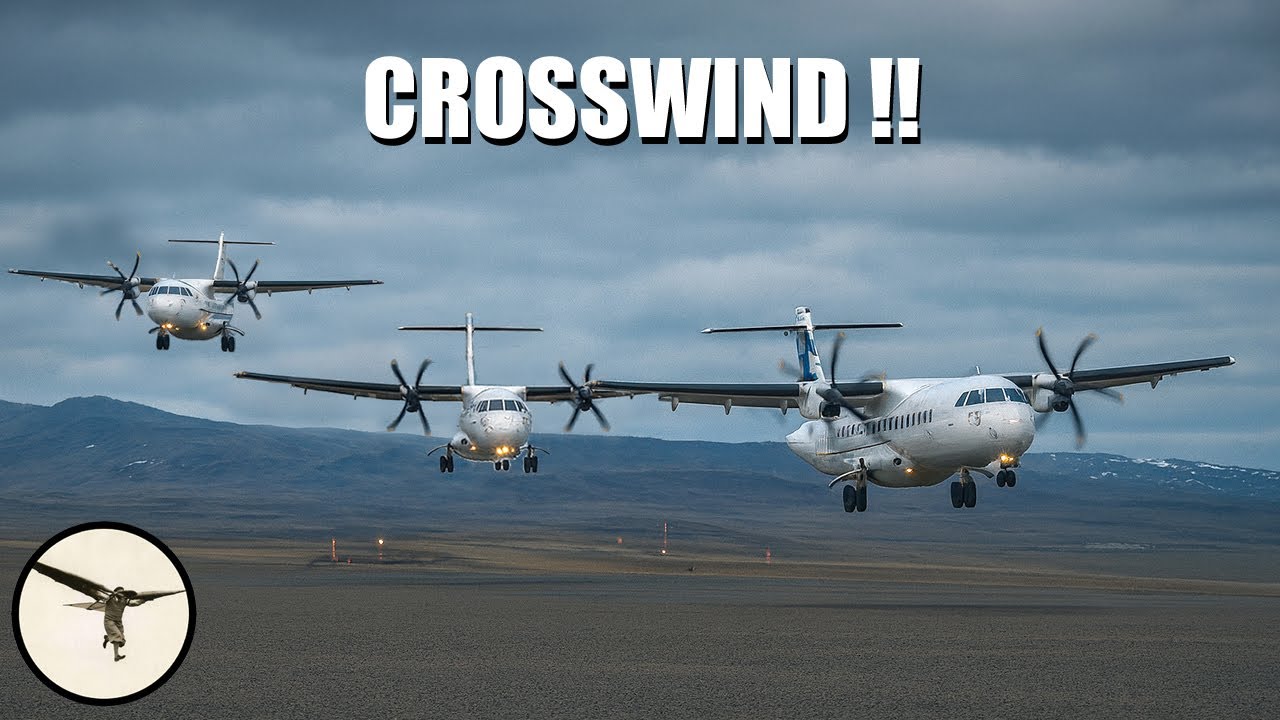
Inside the ATR 72-600 Simulator: Secret Instructor Controls Revealed!

Inside the ATR 72-600 Simulator: Secret Instructor Controls Revealed!

Machine-readable: Markdown · JSON API · Site index
Поделиться Telegram VK Бот
Транскрипт Скачать .md
Анализ с AI

Оглавление (6 сегментов)

Segment 1 (00:00 - 05:00)

Hello aviators, how are you today? My name is Magnar Nordal. I am an ATR instructor, and today I'm inside a simulator for ATR 72-600, and I want to show you the Instructor Operating Station called the IOS. I'm seated behind the pilots and I can control everything in the simulator. I have two big screens and a smaller panel with the most useful functions easy at hand. On top I have a total emergency stop that requires everything to be reset. So that's absolute emergency. I have a motion and control load stop. That means if something go wrong with motion or the controls. Control loads are the forces on the control column and rudder pedals. I can select motion on. I have a control loads. That's for the flight controls. So that's the correct feedback. Communication and light controls. So I can switch lights on and off. This is the ambient blue light. And this is the ceiling light I keep on. And then I have some fast access functions. A total freeze, a flight freeze. When I select this off, then the simulator will run. Engine quick start. Very nice if you have an engine failure in the training, and I want to start engines. Just a quick push, and the engines will start again. Rapid align is for the gyros. Visual enable. That's the visual systems we see outside. And I can mute the sound if I want to talk directly to the trainees without headset. I can put the simulator straight to takeoff. I can make a total reset of everything. I can prime smoke; that's theatrical smoke. Before we... we prime it before we have a scenario, smoke in the cockpit. So they learn how to use oxygen mask and discover how difficult it to communicate and even read checklists. External power, GPU, on and off. And I have a chronograph I can start, and stop, and reset. So that's a very nice panel. The rest happens on these two screens. So let's jump into it, shall we? I will... I'm recording only one of the screens, and the first thing I will do when coming into the simulator, is to define the airport, and that's position set. Now, it's at Dubai. I can also choose other airports from my menu or I can type in ICAO code for any airport around the world. I'm happy with this one. I can change later on. Runway: I can choose runway in use. It's good. So I leave it. And I can then choose gate, taxi, holding, flight level 100 (10,000 ft), or flight level 250 (25,000 ft. ) That brings me up in the air. I selected gate. So we are parked at the terminal, and I can now continue further and set up the aircraft. Zero fuel weight. I can choose any weight I want. Maybe the weight is 18,000 for this lesson. And maybe I have 2,400 kilos fuel and center gravity 26 (%MAC) is a typical value. I have a external power here. The same as we had on the shortcut. Now... we don't need external power. Take it off again. We have doors. Now you can see we have three doors open. I can close them. So we're ready for flight. And I have also rapid align of the gyros. For example, I can provide ground air condition, hydraulic connections. I can put on wheel chocks, so the crew have to remember to tell the ground crew, "Please remove chocks. " I can

Segment 2 (05:00 - 10:00)

put on jacks to simulate flight. That's what the engineers will like to do. Then I go to the active environment. QNH, the pressure. Select 1008 today. Temperature in Dubai, it's 32°. Yeah, winter is coming. Usually it's way above 40 in the summertime. Wind on the ground, let's say it's 150 (degrees) at 10 knots. It's a shortcut. Execute. And it shows wind at other altitudes. I can choose, or I can say it's standard wind profile. Then the wind not altitude will increase, which is typical. I can select intensity of the light, the roughness of the runway, and the surface condition. Turbulence. Maybe we have 2% turbulence today. Is it low level or clear air or storm? No ice. We can remove ice on the airframe. Precipitation. I will show microburst, wind shear. So you learn, for example if you have a takeoff, before rotation speed the... it will become an increasing tailwind. So you stop accelerating on the air speed indicator. During rotation you get the increasing tailwind. And during takeoff passing 100 ft and the vertical wind vectors go bananas. And we can choose light, moderate or severe turbulence. We usually use moderate. And you can also have on approach, and on ILS approach... That's a really rough one, very realistic scenario, which means you have to go around. Okay, back to environment page. We can set clouds and visibility. It can be hazy. So maybe we give it 20 km today. I could put on some clouds. For example, few clouds. The club base should be higher than 200 ft. Let's say 2,500. And the top is given by itself. I can also have preset conditions: Non-precision approach, Cat 1, Cat 2. I show it later on the runway. And I can also select the blowing sand. If it's cold, I can put on a winter scenery. I have a marshaler but he doesn't show up on this image... oh, there he is, yeah. Communication: The cabin attendant can call to the flight deck, and as an instructor, when we use headsets... Here's the instructor's headset. I can talk through intercom. I can talk only to captain, only to first officer. I can transmit through VHF1 and 2 like air traffic control will do. And now the simulator is fully set up. But maybe they have a failure at startup. It's a menu of all the systems. So maybe I have a starter fault, no ignition, starter doesn't disengage, hot start, getting too hot, indication failure, etc., etc. So, that teach them to really observe the start process because it's very automatic. But you have to abort when you see something is wrong. Okay, I think I will put us to... we need a push back here. Tail to the right. Marshaller disappeared. Now we have the tow truck. And I will just get everything ready for a push back. And depending on the procedure in the company, they will have feathered the propellers, or they will run in AUTO, which generates some forward thrust. I will set the condition levers forward now.

Segment 3 (10:00 - 15:00)

Push back complete. Okay, parking brake on. Tow truck moves away. And also, we have a mechanic with the gear pin, he's walking away outside your picture. And we are ready to taxi. I will move the aircraft straight to the holding position. On, push and confirm. We are now holding at 12 right. And maybe there is traffic here. So let's select traffic. And there's an aircraft departing here. Remove flight freeze. And here he goes. That's an Airbus 330. So now the trainee must remember to wait some time before they take off. That's part of that exercise. I think we are ready to takeoff. So I had to just put the aircraft to takeoff position, which I can do here. And we are lined up on the runway. It's a bit a little hazy only. And I will go through different visual scenarios. Every time I move to a new position, the aircraft will freeze. So I select flight freeze off. I can now go to the environment and we can look at different weather. We have CAVOK. That means unlimited visibility and blue sky. If you have a circling approach, visibility goes to 5 km and the cloud base at 600 ft. I can modify the base by clicking here and select maybe 800 ft for example. Non-precision approach: 600 ft and 2. 5 km. ILS category 1: 550 m in fog. ILS category 2: 300 m. And some companies fly category 2 ILS approaches in this visibility. We also have category 3 A and B, which doesn't comply with the ATR because this aircraft is not approved for category 3 approach. And a minimum takeoff visibility 125 m, and you see that's not much. But with proper training you're allowed to do it. Okay. That was the takeoff weather. Then I will go to the map. There we are. I can change the zoom. It will draw a line. I have different options to display here. I can put on a spider web, so I see the bearings. I can display a background map. So now I see the sea, the terrain, etc. And I can also insert some bad weather like a storm. Let's select this storm and put it here. Maybe a little further out like that. Execute. And yes, ahead of us, we have storm clouds. And the trainees can put on the radar and avoid the worst part of it. I can zoom a little in and you can see the red cells. They produce

Segment 4 (15:00 - 20:00)

very strong turbulence in this simulator. You really need a seat belt. It's really, really rough. So therefore, you learn to use the weather radar to avoid this. Okay. I want to move the aircraft to another position. I'll put us on three miles final. And we are on three miles final on 12 right at Dubai airport. And we have good visibility, just the storm clouds. I can now show some weather effects. For example, we can have a light rain. It looks like this. I can in crease to medium. It gets very blurred because water on the windscreen will give this effect. But we have windshield wipers. Put them on. And you can see better now. It's more clear, but they barely see the runway. We are now at 3 miles final at 900 ft. Reduce back to light rain. That's... so now the runway is wet, right? I will remove the rain, and the runway is now wet. I can dry it up with this menu. And on this menu I can also have ice, snow, wet, rubber, which makes it very slippery. Excellent. What else can we show here? Um yeah, we have something we call sleeve, and this is on this menu, and I can change our position the fast, slow, north, west, forward, left, right. I want to move to the other runway. Let's move back to the runway in use. I can move forward. You see the PAPI lights. They are two red, one red, and I'm a little offset. So move a little more like that. So, I'm too high, and four white. I'm too high, not stabilized. I can also change my altitude up and down. Oops. And suddenly I'm way too low. I have four red lights. Go a little up still four red. Too low. One white. Two, three white, four white. Okay. I can also change the heading of the aircraft. So, I can turn it to the right, and we will get the view of downtown Dubai. There we are with Bourj Khalifa on the top. It's very tall. 2,800 ft. So, if you fly to it, let's move forward, a bit faster. And if you're flying like this, you will get warnings, right? Okay. And when they're flying, I can also choose to speed up the ground speed to four times. For example, to save some time, they are a bit far out, they completed all the preparations for an approach. I can just speed up the ground speed and save a few minutes. Okay, let's now have a look at a generic airport, which means is a standardized model you can fit to every airport in the world. And I will choose an airport in Norway. I have to enter the ICAO code. Echo November for Norway and Tango Oscar, Torp Sandefjord, and some call it also Oslo airport. Execute and execute. Reference runway 18. I will choose the other one, 36. And then I move the aircraft to 3 miles final and answer YES. And the simulator will reposition.

Segment 5 (20:00 - 25:00)

There we are on 3 miles final. I will move the simulator a bit closer so we can see more of the settings. Then I use the sleeve for position. I will move forward. Okay, this is Torp airport as a generic airport. And now I can modify it. I go to active environment, generic scene config. I disable the automatic generic airport, and it disappears. I start with the runway length, and I can have 1500 m. Now, first I had to define where should the terminal building be. Now it's on the right. That is wrong. I need it on the left. Like that. Maximum runway is 4,500 m. It looks like this. I will choose 3,500. That's close to reality. I can also vary the width of the runway. 30 m, 60 m. But we need 45 at this approach. Excellent. Then we have approach lights. Now we have some quite easy ones. Maybe I want this. That's a full set. Visual aid. We can have PAPI on both sides. left only. We can have PAPI on the right. So we can make it just what we have... VASIS that's the old approach system. I put it back to PAPI on both sides. That looks nice. Runway markings. They have international. They look like this. They have British. That's something they call JCAB. Okay. We have the terminal,, it can be at this position close to primary end, or further down the runway like this. For Torp it should be close to the threshold. Let's see. There it is. And I have different terminal buildings. This is European, and in United States it looks like that. We go back to Europe. And taxiway right. Then we have taxiways on both sides. But they don't have that at this airport, so I remove it. And then we can look at... we can have parallel runway, if that exist, like that. But they don't have this at this airport, so I disable it. Terrain type: Hot crop plane, cool crop, grass, scrub, tundra, desert, snow. Ah pretty good. To get snow I have to correct the temperature. So, I will select minus five, and then I have winter scene. Have to wait. Okay, now it's winter in Norway. And precipitation. We can have light snow. Looks like a Christmas card. We can select medium snow. No, no big difference. Heavy snow. Now it's very wintry. We can still see approach lights. And we can have hail. I think there's a sound effect on that. We can go back to light snow. That's very scenic like this. Excellent. I will take it away. And now we go and reduce the visibility.

Segment 6 (25:00 - 26:00)

If we (are) flying a category 1 approach, the visibility is 550 m, and we see nothing from here. We are too far away. But I can select the non-precision approach. Now the visibility is 2,500. There it is. That looks pretty good for this approach. We can improve the visibility to 5,000 m. We see the entire runway. And of course we can also set dense fog ILS Cat one, 550 m. We need to be on the runway for that. Okay, I think that looks good. So, that is all for this time. And big thank you to the members of this channel who support me with my work. And to all of you: Thank you for watching. Have a wonderful day, and happy

Другие видео автора — Fly with Magnar

Ctrl+V

Экстракт Знаний в Telegram

Экстракты и дистилляты из лучших YouTube-каналов — сразу после публикации.

Подписаться

Дайджест Экстрактов

Лучшие методички за неделю — каждый понедельник